
Lo que conviene saber sobre el mundo de Squarespace.
Para diseñadores, desarrolladores y personas que crean negocios en torno a Squarespace.
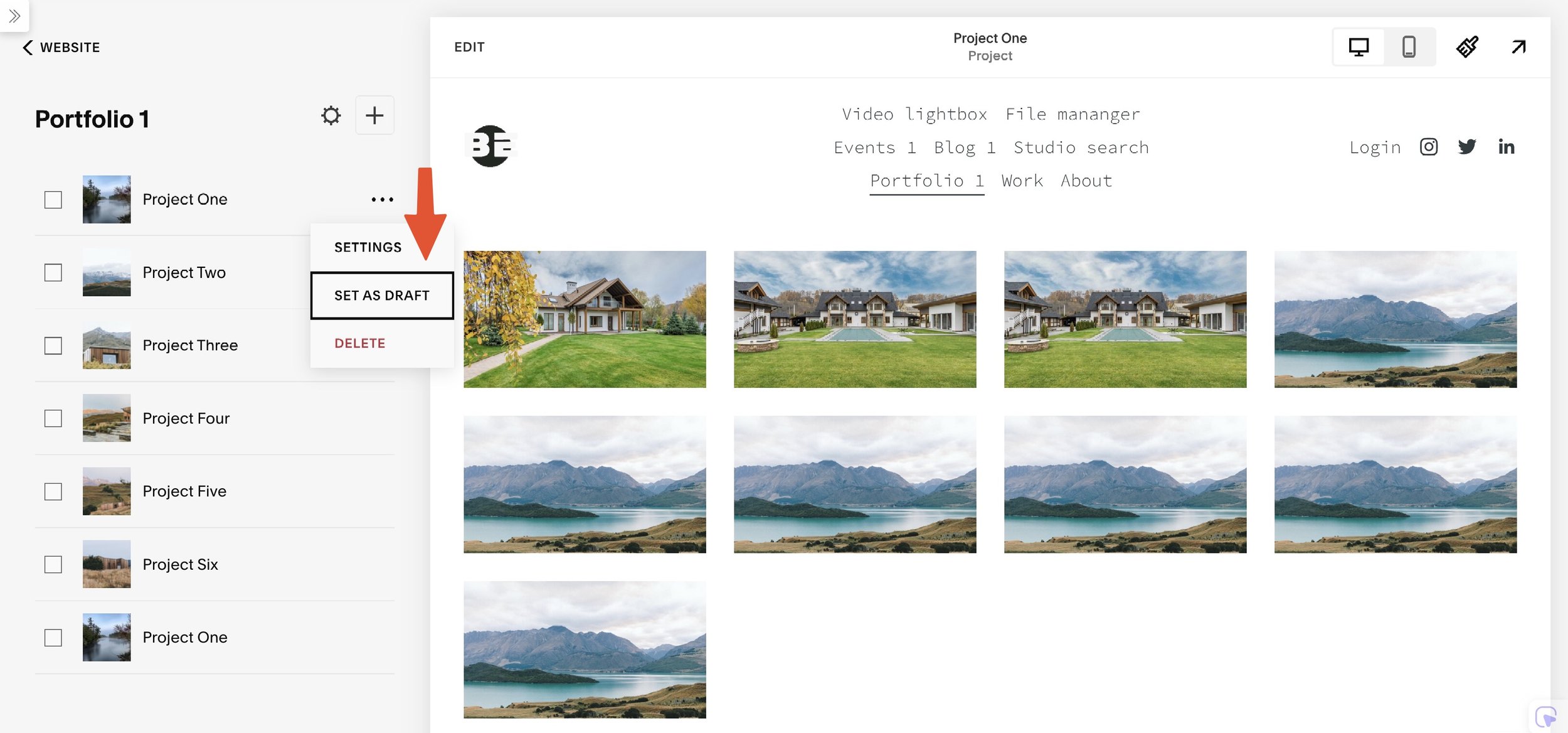
How to set Squarespace Portfolio project as Draft
Are you having an unfinished portfolio project on Squarespace and do not want to publish them until finished? Use Draftify Portfolio from Beyondspace to set a Portfolio project item to draft in one click!
Esta publicación es una colaboración con BeyondSpace.studio
Squarespace Portfolio is an incredible tool for showcasing your creative work, but there’s one glaring limitation: there’s no built-in draft mode for Portfolio projects. This can be frustrating if you want to hide unfinished projects from public view while still working on them.
For creators and businesses, maintaining a polished and professional portfolio is crucial. Without a draft mode, you’re left with limited options to keep incomplete work under wraps. But don’t worry—there’s a solution! Draftify Portfolio from Beyondspace offers a simple way to manage your portfolio drafts and ensure only finalized projects are visible.
Introducing Draftify Portfolio
Draftify Portfolio enables you to hide Portfolio items while you edit, ensuring they don’t appear on your live site until they’re ready. Say goodbye to awkward half-finished projects cluttering your professional portfolio.
Here’s how you can take control of your Portfolio with ease:
Step-by-step tutorial
Step 1: Install Ground Control
Draftify Portfolio is available through the Ground Control plugin. Install it to unlock the ability to manage draft and published states for your Portfolio projects.
Step 2: Create and Manage Portfolio Items
After installing Ground Control, follow these steps:
Create a new Portfolio project as usual.
Click the three-dot menu icon next to your project in the Portfolio manager.
Use the new options:
Set as Draft: Hides the Portfolio project from public view.
Set as Published: Makes the project live and visible.
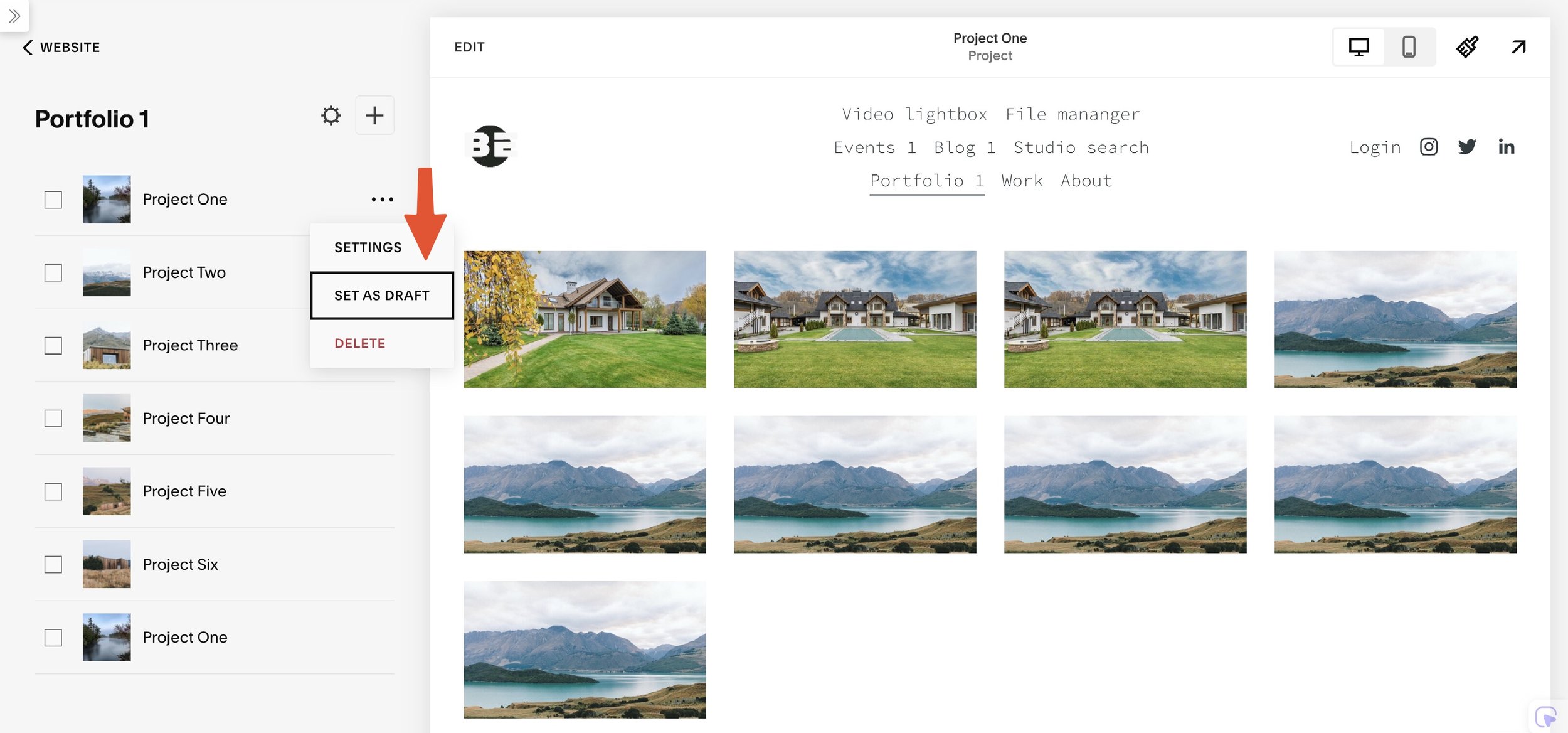
Turn Portfolio project to draft
Draft vs. Published Portfolio Projects
Draft Mode:
Portfolio items are hidden from visitors.
Draft items won’t appear in Portfolio collection pages, including Grid or Hover layouts.
Draft items will be hidden from Portfolio page’s pagination, next published projects will be displayed instead
URLs for draft items will return a 404 page if accessed.
Published Mode:
Projects are fully visible on your site.
Accessible through their URLs and appear in all Portfolio collection displays.
Redirecting 404 Pages for Drafted Items
To maintain a seamless user experience, redirect the URLs of drafted projects to your main Portfolio page. Here’s how:
Navigate to Settings > Developer Tools > URL Mappings in Squarespace.
Add the following line, replacing
your-portfoliowith your Portfolio’s actual slug:
This ensures visitors attempting to access a drafted project are redirected to the main Portfolio page instead of encountering a 404 error — especially useful when you’re editing an indexed project.
Conclusión
Using the Ground Control plugin simplifies managing your Squarespace portfolio by allowing you to set projects as drafts easily. This feature is particularly useful for creatives who want to work on projects privately before showcasing them publicly. For additional details, refer to resources such as the Draftify Portfolio for comprehensive instructions and support

Cómo crear contenido reutilizable con el plugin Synced Blocks
Create reusable content for your Squarespace with Beyondspace Synced Blocks plugin, update once and all the instances of your content will be automatically updated!
Esta publicación es una colaboración con BeyondSpace.studio
Are you tired of updating the same content across multiple pages on your Squarespace site? Say goodbye to repetitive edits and hello to efficiency with the Synced Blocks Plugin by Beyondspace!
What is Synced Blocks plugin?
The Synced Blocks plugin allows you to create reusable content elements that can be updated in one place and reflected across your entire site. Whether it’s text, images, or videos, you can manage your content effortlessly.
Características principales:
Seamless Content Management: Update synced blocks on multiple pages with just one edit, ensuring consistency throughout your site
Support for Multiple Block Types: Easily reuse various content types, including buttons, newsletters, and more
Native Block Editor Compatibility: Fully compatible with Squarespace’s intuitive block editor, making syncing and customization a breeze
The video below showcases how the Synced block works in action (there is mismatch in the Sync Details button now renamed to Sync Content
Cómo funciona:
Create a "Reusables" Blog:
Set up a blog collection in your Squarespace admin panel to store all your Synced blocks, Reusables Blog’s slug should be /reusables/
Save Your Content:
Add a new post to the Reusables blog, insert your reusable content, and publish it.
Use the dedicated Sync Content button to save the change across Squarespace website
Insert Across Pages:
Use a Summary Block linked to the Reusables blog on any page to display your synced content.

Select Synced blocks from Reusables
Why Choose Synced Blocks?
Save time by avoiding repetitive tasks.
Maintain a consistent style across your website.
Easily update promotional content or calls to action without hassle.
Frequently Asked Questions
Question: What Are Synced blocks in Squarespace?
Synced Blocks, also known as "reusable content" or "reusable blocks," are content elements that can be saved once and used across multiple pages and posts on a Squarespace site. This feature allows users to maintain consistency and save time by avoiding the need to recreate the same content repeatedly.
For instance, a Form block can be designed once and inserted wherever needed, ensuring uniformity in design throughout the site
Question: Can I Categorize Synced blocks for Easy Organization?
Yes, you can categorize Synced blocks for easier organization. By creating different posts within your "Reusables" blog collection and categorize them appropriately, you can group similar blocks together. This makes it simpler to manage and locate specific blocks when needed
Question: What’s the Difference Between Synced Blocks and Saved Sections?
The primary difference between Synced Blocks and Saved Sections lies in their functionality. Synced Blocks are reusable content elements that can be updated centrally, reflecting changes across all instances where they are used. In contrast, Saved Sections are entire sections of content that can be reused but do not have the same automatic update feature; changes made to a Saved Section do not propagate across different pages unless manually updated each time

Herramientas de desarrollo imprescindibles para optimizar tu flujo de trabajo en Squarespace
Descubre Beyondspace Utilities: herramientas de desarrollo gratuitas para usuarios de Squarespace. Prueba archivos multimedia, rastrea redireccionamientos, genera códigos de incrustación y crea URL para compartir en Dropbox sin esfuerzo.
Esta publicación es una colaboración con BeyondSpace.studio
Beyondspace Utilities es un conjunto de herramientas gratuitas y fáciles de usar, diseñadas para desarrolladores web, diseñadores y profesionales del marketing. Ya sea para comprobar direcciones URL de archivos multimedia, depurar redireccionamientos o generar códigos de incrustación, estas herramientas ofrecen soluciones prácticas a los retos cotidianos, lo que ayuda a aumentar la productividad y a optimizar los flujos de trabajo.
Explora las herramientas
Vista previa de archivos multimedia en HTML5
Esta herramienta te ayuda a probar fácilmente direcciones URL de HLS (m3u8) y MP4 de plataformas como Vimeo, Gumlet, Wistia o Squarespace. Esta herramienta garantiza una reproducción fluida de los archivos multimedia en todas las plataformas y ayuda a resolver de forma eficaz los problemas relacionados con la distribución de vídeos.
¿Cómo funciona?
Añadir URL de vídeo
Pega la URL de tu vídeo HLS (m3u8) o MP4 en el campo de entrada.Consejo profesional: Los usuarios de Squarespace pueden aprovechar esta herramienta para extraer las URL de los vídeos subidos directamente a su sitio web de Squarespace.
Vista previa del vídeo
. Ve una vista previa instantánea de tu vídeo con el reproductor multimedia integrado de JavaScript.
Rastreador de redirecciones
Realiza un seguimiento de la ruta completa de las URL redirigidas para diagnosticar redireccionamientos 301, resolver enlaces rotos y optimizar las estrategias de SEO. Además, ayuda a identificar las fuentes CDN estáticas de Squarespace para los archivos subidos, lo que resulta útil para simular la subida de archivos al directorio raíz de Squarespace.
¿Cómo funciona?
Introduce la URL de destino en el campo de entrada (incluyendo
http://ohttps://).Haz clic en el botón «Rastrear URL».
Espera a que finalice el análisis de redireccionamientos.
Generador de código para incrustar vídeos de Vimeo
Crea códigos para incrustar vídeos de Vimeo en cuestión de segundos. Esta herramienta analiza las URL de los vídeos de Vimeo subidos y ofrece una variedad de resoluciones de miniaturas, desde baja hasta alta calidad, para ayudarte a elegir y descargar la mejor. Perfecto para incrustar imágenes de alta calidad en galerías o bloques de Squarespace.
¿Cómo funciona?
Añadir URL del vídeo:
Pega la URL del vídeo de Vimeo en el campo de entrada.Personalizar o previsualizar:
Ajusta la configuración del reproductor para crear el código de incrustación de Vimeo y haz clic en «Generar».Consigue tu código o la miniatura del vídeo:
. Obtén el código de inserción, la URL de la miniatura o descarga la miniatura para usarla en tu página web.
Generador de código para incrustar vídeos de YouTube
Genera códigos de inserción para vídeos de YouTube sin esfuerzo. Además, te permite descargar miniaturas de alta calidad, lo que simplifica la integración de contenidos multimedia en sitios web sin renunciar a una presentación profesional.
¿Cómo funciona?
Añadir URL del vídeo:
Pega la URL del vídeo de YouTube en el campo de entrada.Personalizar o previsualizar:
. Ajusta la configuración del reproductor para crear el código de inserción de YouTube y haz clic en «Generar».Consigue tu código o la miniatura del vídeo:
. Obtén el código de inserción, la URL de la miniatura o descarga la miniatura para usarla en tu página web.
Convertidor de enlaces PDF de Dropbox
Convierte los enlaces de PDF de Dropbox en enlaces de descarga directos y compatibles con CORS. Esto resulta ideal para incrustar archivos sin problemas en Squarespace, WordPress o plataformas personalizadas, sin encontrar problemas relacionados con CORS.
¿Cómo funciona?
Consigue el enlace a tu archivo PDF: haz clic con el botón derecho del ratón sobre tu archivo de Dropbox y selecciona «Copiar enlace de Dropbox». El enlace tendrá este aspecto:
https://www.dropbox.com/s/5zu2a90poachtoe/Sfrom-OG62_E-Edition.pdfPega el enlace: Introduce la URL copiada en el campo de entrada de la herramienta.
Convertir el enlace: haz clic en «Convertir» y, a continuación, copia el enlace directo generado.
Cómo utilizar estas herramientas
Cada herramienta incluye una guía fácil de usar para que puedas empezar rápidamente. Tanto si quieres comprobar la URL de un vídeo incrustado, diagnosticar redireccionamientos u optimizar el intercambio de archivos, Beyondspace Utilities está diseñada para ofrecer facilidad de uso y resultados inmediatos, lo que la convierte en la herramienta ideal tanto para usuarios de Squarespace como para profesionales de la web.
¡Simplifica tu flujo de trabajo, ahorra tiempo y lleva tus proyectos a otro nivel con estas herramientas imprescindibles!