
Lo que conviene saber sobre el mundo de Squarespace.
Para diseñadores, desarrolladores y personas que crean negocios en torno a Squarespace.

15 cosas que debes comprobar antes de comprar una plantilla de Squarespace

One of the best parts of Squarespace is the template flexibility it offers you. Squarespace themes include a ton of robust options for styling, layout, and functionality, all included by default with the price you pay to access the platform.
The trouble is, even within that flexibility, there's a certain lack of uniqueness to it. There are dozens of templates, with a lot of potential customizations available, but there are also millions of Squarespace users. It can be difficult to feel like you have something truly unique when you're operating within this framework.
This is a big reason why people tend to look for third-party themes; to find something more unique to them. I wrote a guide on whether or not it's a good idea to buy a Squarespace theme, so check that out if you're not convinced already.
Now, if you've decided that you want to buy a theme from a developer to install on your site, great! There are a ton of excellent options out there. Before buying one, though, there are some things you might want to check. Luckily for you, I've compiled a checklist you can use.
1: Squarespace Version
First and foremost, check to see which version of Squarespace the template uses. Squarespace 7.0 is more restrictive than 7.1, and you'll need to pick the correct base template to customize using a paid template that edits it. It also makes changing away from that template harder in the future.
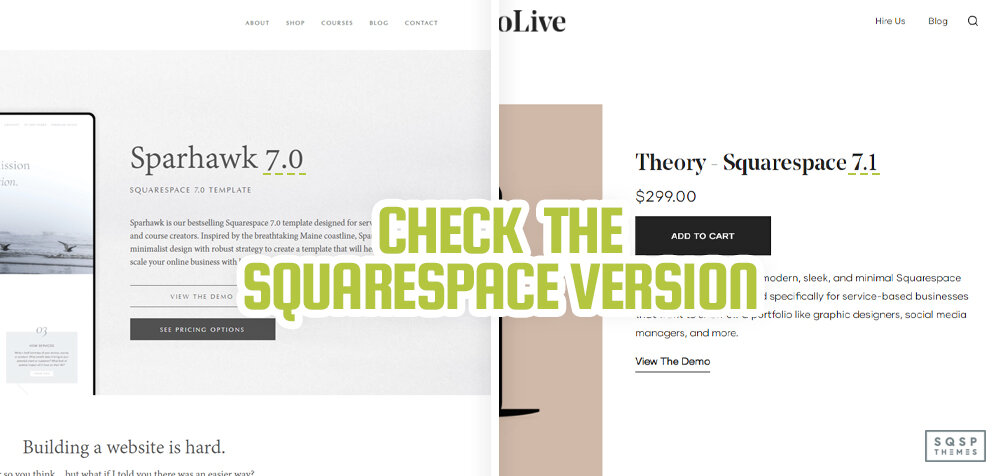
Luckily, the majority of Squarespace templates are either based on the 7.0 Brine family (which is the most popular and most flexible template family) or 7.1. In fact, at this point, it's almost all 7.1 templates. 7.1 is simply too flexible and customizable for developers to restrict themselves to 7.0 families.
If the template doesn't list what version it uses, you may need to ask the developer directly. Alternatively, just skip it, because a developer that leaves out critical information like that is unlikely to create a robust enough template for a serious business or blogger.
2: Site Type Focus
When you go to Squarespace to register a site, they ask you what kind of site you're planning to run. A blog? A portfolio? A store? A services page? Each of these recommends different templates that have different primary features. One might have a more image-focused grid or brick layout, while another might put more focus on written content and product pages.

The same goes for third-party templates. What is the focus of the template? What kind of site is it mostly designed for? The features that are, well, featured in a template for a fashion blog are going to be different from an artist's portfolio, which will be different from a content writer's blog. Make sure you know what kind of site you're making, and what features/layout/design elements you want, before choosing a template.
SQUARESPACE TEMPLATES BY CATEGORY
3: Font Choice and Options
Font choice is customizable on a website but look at the choice and presentation created by the person who developed the template. Does it look good? Does it have issues that might make your site, if you use their template as-is, a worse user experience? Some things I've seen:
The font is too small. Small font size is hard to read on modern devices and is a poor user experience.
Poor kerning, line spacing, or separation. If letters are blending into one another, it can be hard to read.
Poor color choices and low contrast between text and background. Use a contrast checker if you're not sure. Again, this can make text hard to read.

Why bother checking this if you can change it? Well, these are all elements of SEO and user experience, which Google cares about. If your base template doesn't consider these aspects of SEO, what other aspects under the hood is it ignoring or missing?
4: Image Location and Size
It can be tempting to look at the images on a template demo page and consider them representative, but the developer will have chosen images that work. What about YOUR images? Will they fit there? Think about the site design wireframe. Are the images in places you can consistently use and enjoy, or would you want them in a different place or alignment?

Here's an advanced trick you can try if you already have a site with images on it. Visit your site and pick an image, and copy the source URL, which will look something like "https://images.squarespace-cdn.com/content/v1/558ae872e4b06e5cac195ad7/1630661870943-UNUB68XOG5JJPDDEQHRF/Shipstation+Logo.jpg". Then, go to the demo template.

On the demo, use the Chrome/Firefox site inspector to view the code. Find an image, and double-click on the code segment that shows the image URL. Replace that URL with your URL. This will replace the image with your image (on your local display copy, this doesn't affect the demo version and the developer will never know you did it) so you can see how it looks. Does it look good?
5: Custom Page Support

Squarespace allows you to create pages that aren't quite within their usual template layouts. How well does the template support those custom page types? Does the demo the developer provides show off more than one, or do they only show the default templates? The primary concern here is that certain elements won't be styled, which can be an issue if you want to use those page types.
6: User Experience Features

There are a lot of small features of the user experience that are important to consider for SEO, usability, and general UX purposes. One that I find very useful is a sticky navigation bar. You want your users to always be able to find their way around your site, so making your navigation bar stick to the top is often a great idea. Of course, there are a bunch of other options as well; consider the best practices for user experience.
7: Comprehensive Styling

I mentioned in my post about paid templates that a common issue I see is some of the less commonly-used elements of a page aren't fully styled. For example, maybe you use H3 sub-sub headings in your blog content. Does the page you're looking at style those, or do they stop at H2? How about links, are the links styled, or are they the browser default? There are a lot of small elements that need to be styled on a site, and if a custom template doesn't do it, you'll have to do it yourself to cover the bases. It also has the same issue as above: if the developer didn't style it, what else didn't they think of?
8: Mobile Function
All Squarespace templates are based on the core Squarespace architecture, and that means they all have a mobile responsive design by default. However, that doesn't mean the developer made it look good or cared about it.

Try resizing your browser window. What elements disappear at what scale? How does it look at the traditional tablet and mobile viewport resolutions? You can also open the demo on your mobile device to see how it works.
9: Competitor Themes

Here's one you might not have thought of. Rather than checking your prospective theme, check your competitors. What templates are they using? How different does your chosen custom template look compared to theirs? Your goal is to stand out, while still having a highly functional, useful, well-designed site. If you pay for a template but find that it's very similar to what your competitors are using, it just looks like you're trying to copy them.
10: Reviews or Mentions
I always recommend looking up reviews of anything you're considering buying, especially if it's part of the core functionality of your website/business/blog.

Unfortunately, many developers have store pages for their templates that don't have comments or reviews sections, so you aren't going to be able to find anything on their site. My recommendation, in that case, is to simply search for the developer name and/or the template name. Use a – to filter out the developer's site and any other sites that are just reselling rather than reviewing. In particular, look for web forums, blog comments, and Reddit mentions, as these are more likely to have relevant commentary on the template.
A lot of times you won't find anything relevant, and that's fine. You're not necessarily looking for glowing positive reviews. Rather, you want to see if there's a common issue or complaint that people are bringing up.
11: 404 Page Customization

The 404 page is another one of those easy to overlook elements of a site. Does the template offer a customized or customizable 404 page? It should. Unless you plan to do a blanket redirect, which isn't usually the best idea for SEO purposes anyway. It doesn't necessarily have to be a GREAT 404 page since hopefully, it's not going to be seen very often, but if people do land on it, you want a good experience for them regardless.
12: Page Load Times and Core Web Vitals
This one is tricky. Site speed, load times, and the "core web vitals" are part of Google's current push for user experience, usability, and a fast-loading internet. They're becoming increasingly important parts of SEO, and that means they're exceedingly relevant.

The trick is, it's hard to judge them based on a demo page from a developer. Their page might be simulated, for example. You can, however, still, run it through the Core Web Vitals and PageSpeed checks.
Bear in mind that some of this will depend on the site hosting, and won't be the same for you. Still, it can be worth checking. You might also want to check the file size of the pages loaded by the template, in case they're unusually bloated in some way. There are some developers out there who are good at making very pretty sites that are hugely inefficient and bloated. Just be careful!
13: Developer Support
If you have an issue with the template, whether it's a problem installing it, a question about a page type, or instructions on how to tweak an element, how do you get support? Does the developer offer support, and if so, what channels do they use?

More importantly, how responsive is the support? One trick I recommend is coming up with a simple, reasonable question about the template (something like "hey, does your template support X custom page?" or the like) and sending an email to the developer to see how long it takes them to respond. Granted, you aren't able to use their priority support if they offer it this way, but it can still be a good indication of how available they are if you need them.
14: Scripting Errors
Above, I mentioned the inspection tool. Well, there are a lot of tools built into modern browsers that can help you identify what's going on behind the scenes in a website. One that can be very important is the console.
Load up the demo of the template, click Inspect, and click console. This will show you the logs for any scripts that are executing, as well as all the normal browser calls and responses. Look in this log for errors. Are there scripts that throw errors or don't work right? It's possible that the template has compatibility or scripting issues, and those can reflect poorly on you if you use the template.
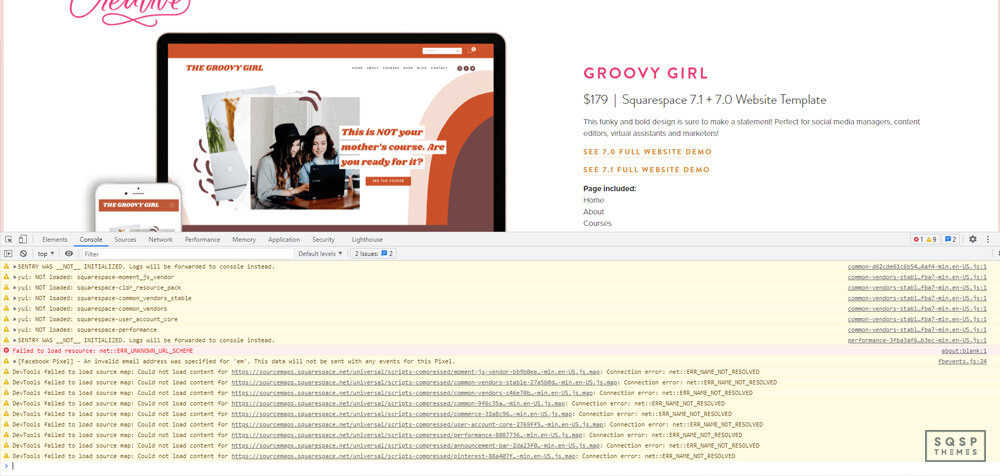
Just make sure to disable any script-blockers or adblockers (or anything else in your browser that might interfere with the template) before you try this, just to remove issues that are actually on your end.
15: Price
Let's be honest here; price is sometimes all that matters as long as the template looks good. In my experience most paid templates run between $150 and $300 for a license. Compare different templates to see what that cost covers. If the price is lower than that, try to figure out why. What are they leaving out? Conversely, if the price is higher, why are they charging more? Do they offer anything worth that value, or are they just trying to get as much as they can?

Ideally, if you run through this checklist on a template before you buy it, you can be fairly assured that it's a good one if it passes all the checks. Or, you can simply browse my curated selection, since I've done the work for you already. Happy shopping!
Cómo añadir tus productos de Squarespace al catálogo de Pinterest
El primer paso para incorporar tu feed de productos de Squarespace a tu catálogo de Pinterest es exportar un archivo CSV desde Squarespace. Para ello, ve al panel de control de Commerce y, a continuación, a «Inventario». En la esquina superior derecha, verás una opción llamada «Exportar todo»; al hacer clic en ella, se generará un archivo CSV con los productos. Una vez que tengas este archivo, ábrelo en Google Sheets.
Pinterest tiene sus propios requisitos sobre cómo deben organizarse estos datos. La hoja de cálculo deberá procesarse de forma que se ajuste a los requisitos de Pinterest. Para ayudarte con esto, Pinterest ofrece una lista de campos obligatorios que deben rellenarse. Entre ellos se incluyen el ID, el ID del grupo de artículos, el título, la descripción, el enlace, el enlace a la imagen, el precio, la disponibilidad, los nombres de las variantes y los nombres de los valores. Puedes encontrar más información sobre qué debe incluirse en estos campos en los consejos de formato de Pinterest.
En la hoja de cálculo, tendrás que cambiar el nombre de la primera columna a «item_group_id» y rellenar las celdas vacías con el ID del grupo de artículos del producto que aparece justo encima. Si tienes un catálogo de productos muy extenso, hay un script disponible que puede automatizar este proceso. Puedes registrarte para recibir una notificación cuando esté disponible.
También tendrás que cambiar el nombre de la columna «URL del producto» por «enlace» y fusionar las columnas D y E en la URL. Para ello, deberás combinar la URL de la tienda de la columna D y la URL del producto de la columna E para crear el enlace definitivo.
Una vez que hayas realizado todos estos cambios, tu hoja de cálculo de Google estará lista para importarla a tu catálogo de Pinterest.
El siguiente paso es publicar el archivo CSV en la web. Para ello, ve a «Archivo» > «Publicar en la web», cambia la opción de «Página web» a «CSV» y publícalo.
Esto creará un enlace que podrás utilizar como feed de productos. Cualquier cambio que realices en la hoja de cálculo se reflejará automáticamente en tu catálogo de Pinterest, aunque Pinterest puede tardar hasta 24 horas en actualizar el feed.
El último paso consiste en importar el feed a Pinterest. En tu página de empresa, ve a tu catálogo, que suele encontrarse en el menú de anuncios. Asigna al feed el nombre que prefieras y pega la URL del feed de productos en el espacio correspondiente.
Comprueba tu feed y valídalo; a continuación, podrás crear pines y esperar 24 horas para ver los cambios. Una vez que tu feed haya sido verificado, pasarás a ser un comerciante verificado de Pinterest.
Si sigues estos pasos, podrás importar correctamente tu feed de productos de Squarespace a tu catálogo de Pinterest.

Las 8 mejores plantillas de blog de Squarespace
Si vas a crear un blog en Squarespace, hay varias plantillas recomendadas por la propia plataforma. Todas las plantillas te permiten crear un blog, pero estas cuentan con características específicas que se adaptan a diseños de estilo blog y revista.
A la hora de elegir una plantilla, Squarespace recomienda que «todas nuestras plantillas son puntos de partida» y que «elijas tu plantilla en función del diseño, no de la funcionalidad». En otras palabras, elige la plantilla cuyo aspecto se acerque más a lo que quieres para tu propia página web. Los elementos visuales, como el contenido, las fuentes, los colores y los estilos, se pueden personalizar una vez te hayas registrado.
Pregunta:
«Voy a trasladar mi blog a Squarespace; solo necesito una plantilla que sea bastante accesible y sencilla. Quiero que mis entradas aparezcan en forma de lista, sin cuadrícula, y solo voy a incluir texto, sin demasiadas imágenes. Si tienes alguna sugerencia que se ajuste a estos criterios, dímelo».
Respuesta:
Empieza por aquí. Estas son las plantillas de blog más minimalistas de Squarespace. Todas son variaciones del mismo tema básico, así que si ves algún elemento que quieras eliminar, solo tienes que borrarlo.
PULASKI
Más sencillo, imposible. Un blog y una página de contacto. Cambia la paleta de colores y las fuentes y tendrás algo único en solo unos minutos.
2. PALMERA
Palmera tiene un par de páginas más para que te hagas con el tema, incluida una tienda.
En los blogs hay imágenes en miniatura, pero todo esto se puede eliminar de la versión de demostración.
3. GROVE
Grove es una versión que recuerda a la plantilla Native. Una vez más, es muy sencilla. Borra las imágenes y empieza desde cero.
4. Plantilla Skye 7.0

«Haz que tu blog despegue con Skye, una plantilla que ofrece a tus lectores una experiencia de navegación sencilla pero envolvente, con un diseño en cuadrícula limpio y equilibrado».
Skye es una plantilla con diseño en cuadrícula al estilo de las revistas, ideal para blogs sobre estilo de vida, viajes y gastronomía. La familia de plantillas incluye Tudor, Foundry, Indigo y Ready.
Entre las funciones del blog se incluyen mosaicos de miniaturas, desplazamiento infinito y perfiles de autores.
Estilo: cuadrícula
Barra lateral: blog
Botón para compartir: avanzado
Banner de página: no
Banner de entrada: sí
Entradas relacionadas: sí
5. Plantilla de farro

Farro es similar a Brine, pero está diseñado «para blogueros, sitios web de noticias y cualquiera que publique un gran volumen de contenido».
Entre las funciones del blog se incluyen mosaicos de miniaturas, desplazamiento infinito y perfiles de autores.
Estilo: cuadrícula
Barra lateral: no (echa un vistazo al plugin de la barra lateral)
Botón para compartir: avanzado
Banner de página: sí
Banner de entrada: sí
Entradas relacionadas: sí
Desplazamiento infinito: sí
6. Familia de plantillas Brine
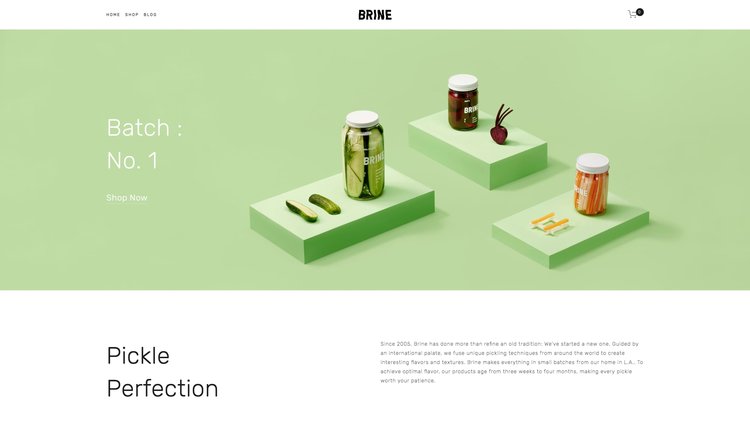
Brine es una plantilla de comercio electrónico muy popular con la que se puede crear un blog dinámico. Hay algunas funciones específicas para blogs que no están integradas de serie en esta plantilla, como una barra lateral, el desplazamiento infinito o las imágenes de cabecera en las entradas del blog.
Estilo: cuadrícula/lista
Barra lateral: no (echa un vistazo al plugin de la barra lateral)
Botón para compartir: avanzado
Banner de página: sí
Banner de entrada: no (añade aquí un banner de entrada)
Entradas relacionadas: no
Desplazamiento infinito: no
7. Plantilla nativa

Brine es una plantilla de comercio electrónico muy popular con la que se puede crear un blog dinámico. Hay algunas funciones específicas para blogs que no están integradas de serie en esta plantilla, como una barra lateral, el desplazamiento infinito o las imágenes de cabecera en las entradas del blog.
Estilo: cuadrícula/lista
Barra lateral: no (echa un vistazo al plugin de la barra lateral)
Botón para compartir: avanzado
Banner de página: sí
Banner de entrada: no (añade aquí un banner de entrada)
Entradas relacionadas: no
Desplazamiento infinito: no
8. Cinco plantillas
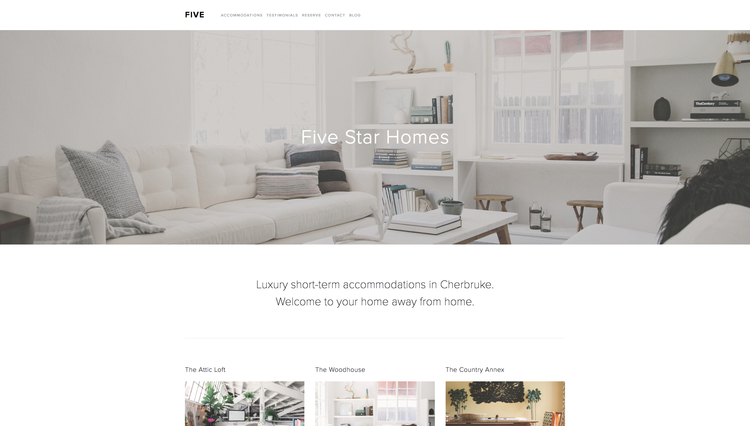
Brine es una plantilla de comercio electrónico muy popular con la que se puede crear un blog dinámico. Hay algunas funciones específicas para blogs que no están integradas de serie en esta plantilla, como una barra lateral, el desplazamiento infinito o las imágenes de cabecera en las entradas del blog.
Estilo: cuadrícula/lista
Barra lateral: no (echa un vistazo al plugin de la barra lateral)
Botón para compartir: avanzado
Banner de página: sí
Banner de entrada: no (añade aquí un banner de entrada)
Entradas relacionadas: no
Desplazamiento infinito: no
Plantillas de terceros
Las plantillas anteriores están incluidas en tu plan de Squarespace. Si buscas un diseño más original o personalizado, existen kits de diseño de terceros que te permiten crear tu propio «tema» a partir de las plantillas existentes; en ese caso, echa un vistazo a esta colección de plantillas a la venta.
¿Echas de menos las antiguas plantillas de la versión 7.0? Échales un vistazo de nuevo aquí.