
Lo que conviene saber sobre el mundo de Squarespace.
Para diseñadores, desarrolladores y personas que crean negocios en torno a Squarespace.

Developing for Count Binface using Squarespace
Elections for public office in many countries can have global consequences—the USA, for example, the European Union, and China. No, wait. But elections in the UK have a distinctly British quirkiness. Here, when an election is held for a major office like Prime Minister, there’s often someone standing there who looks out of place.

One of these was a serious candidate for British Prime Minister. But it isn’t the one you think it is.
Although it’s not purely a British phenomenon, the UK has a long tradition of perennial and sometimes novelty parliamentary candidates. In last year’s general election, one candidate stood head and shoulders above the others, largely down to his dustbin-shaped helmet. He’s Count Binface, the intergalactic space warrior from planet Sigma 9 who campaigned against our previous Prime Minister, Rishi Soon Axed.
During a series of articles about political party websites, I wrote about my suggestions for a new Count Binface website. Well, you can imagine my delight and surprise when news arrived from Sigma 9 that Count Binface liked my designs. A few days later, Count Binface called and asked if I could turn my design ideas into his campaign website for this general election. I couldn’t refuse.
Squarespace is (obviously) the platform of choice for intergalactic space warriors. So, less than a week before Count Binface was due to announce his manifesto, the challenge was to develop my designs into a new website using Squarespace. I was a little concerned that I couldn’t deliver all my design details using Squarespace, but I did, and here’s how it got done.

Selection of page designs for Count Binface
Organic-shaped visual elements
Page layout is a crucial element in visual storytelling. Still, far too many websites use a generic grid with twelve even-width columns, resulting in an endless sea of carbon-copy website designs.
Count Binface has chosen Squarespace with its out-of-box 24-column even-ratio grid. My challenge was making a design that utilised the built-in layout without the result looking like a generic template. To accomplish this, I designed organic-shaped visual elements and used rounded frames for images and video to mask the grid structure.
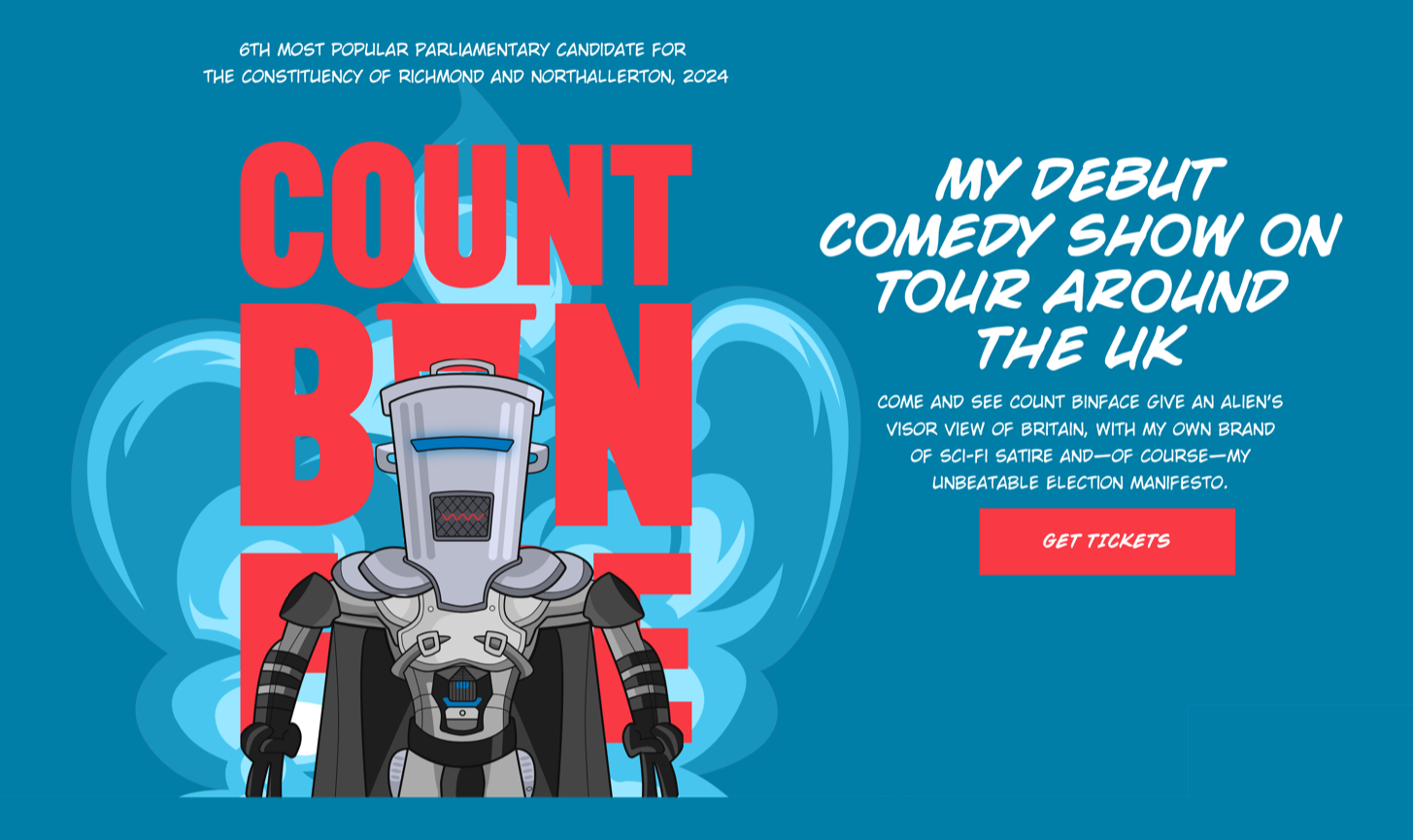
I created a portrait orientation graphic banner containing text and an animated Count Binface image.
Count Binface is, let’s (bin)face it, an unconventional character, so I wanted someone’s first impression of his website to be as unusual. This meant avoiding the full-width banner images which have invaded the web like an alien species. Instead, I created a portrait orientation graphic banner containing text and an animated Count Binface image. Alongside it is his introduction, which he updates regularly with new messages.

Banner anatomy inside the Squarespace UI.
I used custom CSS to apply a background image to soften the hard division between the home page banner and the panel below.

Softening the hard divisions between panels.
As Squarespace doesn’t allow precise positioning of background images, the custom CSS enabled me to control its position, repeat, and size by targeting the banner’s unique ID:
#collection-6661ddfcbac9fa3097a9e21a {
background-image: url(https://images.squarespace-cdn.com/…);
background-position: 0 100%;
background-repeat: no-repeat;
background-size: 100% 50px; }
To reduce the number of sharp corners throughout the design and turn Count Binface’s embedded videos into retro-styled TV screens, I applied Custom Featured Images with rounded shapes to each of the video blocks.

Custom Featured Images with rounded shapes
Adding custom font files
The type design of Count Binface’s new website is a big part of its personality. I chose Wildwords, a comic lettering font from Comic Book Fonts, and Count Binface commanded his team on Sigma 9 to purchase a license. Using a font from outside Squarespace isn‘t tricky.

Using a font from outside Squarespace
1) Navigate to Custom CSS and expand the Custom Files dropdown.
2) Upload font files in a web-font format like woff2.
3) Add this snippet of CSS for as many fonts as you’re using.
@font-face {

font-family: 'FONT-NAME';

src: url('URL'); }
For each, replace FONT-NAME with the specific font name you’ll refer to elsewhere in your CSS. eg: wild-woods-regular
Delete the URL placeholder, keep the insertion point between the marks, open Custom Files again, and press the font name.
Squarespace will insert the absolute path to your font file now stored in its CDN.
@font-face {
font-family: 'wild-woods-regular';
src: url('https://static1.squarespace.com/…'); }
Now refer to the font-family name wherever you need the custom font.
body {
font-family:"wild-woods-regular", sans-serif; }
Using SVG with Squarespace
For as long as I can remember, I’ve implemented graphics in my designs using Scalable Vector Graphics (SVG) for their high performance, scalability, and sharpness, especially on high-resolution displays. From the abstract artwork on my Squarespace template store to the animated banner on my studio website. Squarespace doesn’t (yet) allow you to use SVG files in its image blocks, so for the graphic banner containing text and an animated Count Binface image, I used a code block to embed inline SVG code. My process includes:
Designing SVG graphics using Sketch
Optimising these graphics by reducing paths and points
Exporting the SVG files
Further optimising the files using Jake Archibald’s SVGOMG
Even after I uploaded my custom fonts to Squarespace, some aspects of the implementation—including the large block numerals on the Count Binface home page—couldn’t be achieved using the Squarespace UI. To gain precise control over their alignment and spacing, I created these elements as SVG files and embedded them into the design using code blocks.

SVG files and embedded them into the design using code blocks.
Code blocks and Custom CSS are your best friends
Squarespace is a flexible and powerful platform, but I cannot overstate the importance of Code blocks and Custom CSS to my Squarespace development process. Having spent my career writing CSS and HTML, it’s much easier and faster for me to embed HTML and SVG into a code block and then style it using Custom CSS. Sometimes, it’s things most people notice, like that graphic banner.

HTML and SVG in a code block.
Most often it’s the small details which make such a big difference to a design. For example, the Count Binface website footer includes a rocket graphic that links his logo to his social media icons.

Rocket graphic links his logo to his social media icons.
The lines in this divider expand to fill any available space, which is an obvious application for CSS Flexible Box Layout (Flexbox.) So, I inserted a code block with HTML for the divider:
<div class="hr-rocket">
<svg xmlns="…"/></svg>
</div>
And use custom CSS to style it:
.hr-rocket {

display: flex;

align-items: center;

gap: 10px; }


.hr-rocket svg {

width: 32px;

height: 24px; }


.hr-rocket:after,

.hr-rocket:before {

content: "";

display: block;

flex: 1;

border: 0;

border-top: 3px solid #F93943;

height: 1px; }
Conclusión
Count Binface didn’t defeat our former Prime Minister—Sir Keir Starmer did that—but he did come sixth with his highest tally of votes, meaning his campaign was a success. How much of that was due to his new Squarepace website isn’t known, but my sources on Sigma 9 tell me it was a lot. Whatever the truth is, I thoroughly enjoyed developing the new Count Binface with Squarepace and I hope it works well for him for thousands of years to come.

Andy Clarke
Often referred to as one of the pioneers of web design, Andy Clarke has been instrumental in pushing the boundaries of web design and is known for his creative and visually stunning designs. His work has inspired countless designers to explore the full potential of product and website design.
Andy’s written several industry-leading books, including ‘Transcending CSS,’ ‘Hardboiled Web Design,’ and ‘Art Direction for the Web.’ He’s also worked with businesses of all sizes and industries to achieve their goals through design.
Visit Andy’s studio, Stuff & Nonsense, and check out his limited edition Premium templates for Squarespace.

How to get Squarespace orders into Zapier
If you’ve ever needed to connect your Squarespace orders to Zapier for streamlined workflows, I’ve got good news: it’s easier than you think. Recently, I had to figure this out for myself because I’m selling an eBook as a physical product variant on Squarespace. The catch? I needed a way to make sure my eBook customers got their purchase delivered to their email inbox automatically.
Here’s how I solved it—and how you can, too.
The Problem: Automating eBook Delivery
In my case, I’m selling a physical product with one variant being an eBook. While Squarespace handles physical product orders just fine, it doesn’t natively handle automated eBook delivery. To make it work, I needed to export orders and integrate them with Zapier, where I could set up an email workflow for eBook customers.
The Solution: SuperJack
This is where SuperJack came in and saved the day. SuperJack is a tool that lets you automatically export all your Squarespace orders into a Google Sheet in real time. Once the data is in Google Sheets, you can easily integrate it with Zapier and use it however you need—whether that’s sending emails, updating records, or triggering other workflows.
Step-by-Step: Setting Up the Workflow
Here’s how I got it done:
Connect SuperJack to Squarespace and Google Sheets
After signing up for SuperJack (which gives you a free 3-day trial), the first step is connecting your Squarespace account. It literally takes five seconds. Then, connect your Google Sheets account—another five seconds.Export Orders to Google Sheets
SuperJack allows you to choose which fields you want to export or even narrow it down to specific products. This feature is a lifesaver if you’re dealing with multiple product types and want to keep things clean in your spreadsheet.Filter Data in Zapier
Once orders start exporting to Google Sheets, you can set up Zapier to filter out only the eBook orders. Zapier then sends an email to those customers with their eBook attached or a download link.Example: “Hey, here’s your eBook!”
This workflow pulls customer data from the Google Sheet, filters it based on the product purchased, and triggers the email.
Toggle Zapier Compatibility
SuperJack includes a handy toggle for Zapier compatibility, ensuring your Google Sheet is ready to integrate seamlessly. Just make sure to enable the New Spreadsheet Row Team Drive option, and you’re good to go.
Why SuperJack is a Game-Changer
I was blown away by how quick and easy this setup was. From start to finish, I had my workflow running in just minutes. No complicated coding, no manual exports—just a smooth, automated system that worked on the first try.
Whether you’re delivering eBooks, triggering notifications, or syncing orders with your CRM, SuperJack simplifies everything. Plus, it’s flexible enough to handle just about any Zapier integration you can dream up.
Try It Yourself
If you’re ready to automate your Squarespace orders and streamline your workflows, check out SuperJack. You’ll be up and running in no time. Let me know if you have any questions—drop them in the comments, and I’ll do my best to help.
Peace.

How to Offer Both Digital and Physical Variants of the Same Product on Squarespace

Are you trying to sell both physical books and their digital versions on your Squarespace site but feeling stuck?
I know exactly how you feel - I faced the same problem trying to sell my ebook and paperback in the same product listing.
Like many Squarespace users, I quickly realized the platform doesn't natively support selling digital variants alongside physical products without creating a mess. To offer both options, I was forced to either clutter my shop with duplicate listings or manually send digital files after every sale. Neither felt professional, scalable, or sustainable.
The suggested "workaround" of creating separate product entries for each format left my shop feeling disorganized and overwhelmed my customers with too many choices. For someone managing multiple products, this quickly became an administrative nightmare.
I wanted a way to offer my customers the choice between a physical book and an eBook in one clean, seamless product listing—without leaving the Squarespace ecosystem or spending hours fixing it every time I made a sale.
In this post, I’ll share the solution I discovered: a custom JavaScript workaround that dynamically customizes the order confirmation page. With this approach, your customers can download their eBook immediately after purchase, while your shop stays organized, user-friendly, and professional.

ebook variant order page

physical variant order page
Setting Up Variants for Digital and Physical Products in Squarespace
The key to keeping your shop organized while offering both digital and physical versions of the same product is using variants. Variants let you provide different options—like “eBook” and “Paperback”—under the same product listing, creating a clean and streamlined shopping experience.
Here’s how to configure and handle variants effectively:
1. Add Variants to Your Product
Edit Your Product: Go to the Squarespace dashboard, navigate to Commerce > Inventory, and select the product you want to modify.
Enable Variants: Under the Pricing & Variants tab, click Add Variant.
Create an option called
Formato(or something similar) to represent the type of product.Add options like
PaperbackandeBook.
Set Pricing: Assign different prices to each variant if needed. For example, the
Paperbackmight cost $15, while theeBookis $7.
2. Use Custom JavaScript to Handle Digital Variants
Squarespace doesn’t natively deliver files for digital product variants, so we’ll use JavaScript to detect when the eBook variant is purchased and display a download link on the order confirmation page.
Here’s how to implement it:
Code to Inject:
Navigate to Settings > Advanced > Code Injection.
Scroll to the Order Status Page section.
Add this JavaScript:
<script>
document.addEventListener('DOMContentLoaded', function() {
    // Search for all spans to find if any contain 'Format: eBook'
    var allSpans = document.querySelectorAll('span');
    var ebookFound = Array.from(allSpans).some(span => span.textContent.includes('Format: eBook'));

    if (ebookFound) {
        // Target the tracking updates section and change the heading
        var trackingSections = document.querySelectorAll('h2');
        var trackingSection = Array.from(trackingSections).find(section => section.textContent.includes('Tracking updates'));

        if (trackingSection) {
            // Update the heading text
            trackingSection.textContent = 'Download Your eBook';

            // Find the parent container that holds the content to be replaced
            var contentContainer = trackingSection.nextElementSibling;
            if (contentContainer) {
                // Replace with a button that matches the Squarespace style
                contentContainer.innerHTML = `<center><button aria-label="Download eBook" width="100%" class="css-12it2aq"><a href="https://www.omariharebin.com/s/The-Corporate-Dropout-A-Memoir.zip" style="color: inherit; text-decoration: none;">Download the eBook here</a></button></center>`;
            }
        }

        // Optionally, hide shipping information
        var shippingInfo = document.querySelector('.shipping-info'); // Adjust this selector based on your actual shipping info container
        if (shippingInfo) {
            shippingInfo.style.display = 'none';
        }
    }
});
</script>
What the Code Does:
Detects the eBook Variant:
The script searches for spans on the order confirmation page that include the text "Format: eBook."
Customizes the Order Confirmation Page:
If the eBook variant is found, the script updates the heading “Tracking updates” to “Download Your eBook.”
It replaces the section content with a download button styled like Squarespace’s default buttons.
Hides Shipping Information:
For digital purchases, unnecessary shipping information is hidden for a cleaner user experience.
3. Testing Your Setup
Perform test purchases for both digital and physical variants:
For eBooks: Verify that the download button replaces the tracking section and functions correctly.
For Physical Products: Confirm that the order confirmation page remains unchanged.
Test across multiple devices and browsers to ensure compatibility.
4. Optional Enhancements
Add analytics tracking to measure how often the eBook link is clicked.
Style the download button further using CSS to better match your brand’s aesthetic.
Conclusión
By following this tutorial, you’ve not only simplified your Squarespace shop but also solved a long-standing issue for store owners selling digital and physical products. With just a few tweaks, your customers can easily choose their preferred format, and you can automate digital file delivery—all while keeping your shop neat and professional.
Advanced Customization: Handling Multiple Digital Variants or Non-eBook Products
While this guide focuses on selling eBooks as a digital variant, the same solution can be easily adapted for other types of digital products or even multiple digital variants like licenses or formats.
Adapting for Non-eBook Digital Products
If you’re selling other digital products—like audio files, videos, or software—you can tweak the script to detect specific product types and provide the appropriate download links. For example:
Music Files: Offer both
MP3andWAVformats with unique download links.Licenses: Provide
Personal UseandCommercial Uselicense options for the same product.Training Materials: Allow customers to choose between
BasicandAdvancedcourse content.
How It Works
Detect the Variant: Adjust the JavaScript to look for specific text in the product variant (e.g., "Format: MP3" or "License: Personal Use").
Match the Download Link: Use conditional logic or a variant-to-URL mapping to provide the correct file for each digital product.
Example Script
Here’s a dynamic version of the script that supports multiple digital variants:
<script>document.addEventListener('DOMContentLoaded', function() {
    // Variant-to-URL mapping
    var variantLinks = {
        'Format: MP3': '/s/Your-MP3-File.zip',
        'Format: WAV': '/s/Your-WAV-File.zip',
        'License: Personal Use': '/s/Personal-License.zip',
        'License: Commercial Use': '/s/Commercial-License.zip'
    };

    // Detect the variant
    var allSpans = document.querySelectorAll('span');
    var matchedVariant = Array.from(allSpans).find(span => variantLinks[span.textContent.trim()]);

    if (matchedVariant) {
        var downloadUrl = variantLinks[matchedVariant.textContent.trim()];

        // Update the confirmation page
        var trackingSections = document.querySelectorAll('h2');
        var trackingSection = Array.from(trackingSections).find(section => section.textContent.includes('Tracking updates'));

        if (trackingSection) {
            trackingSection.textContent = 'Download Your File';
            var contentContainer = trackingSection.nextElementSibling;
            if (contentContainer) {
                contentContainer.innerHTML = `<center><button aria-label="Download File" class="css-12it2aq">
                    <a href="${downloadUrl}" style="color: inherit; text-decoration: none;">Download the File Here</a>
                </button></center>`;
            }
        }

        // Optionally hide shipping info
        var shippingInfo = document.querySelector('.shipping-info');
        if (shippingInfo) {
            shippingInfo.style.display = 'none';
        }
    }
});
</script>
Por qué es importante
This approach is scalable and adaptable:
Works for any type of digital product or multiple digital variants.
Reduces manual effort by automating the delivery of the correct file for each purchase.
Keeps the order confirmation page clean and user-friendly.
Use Cases
Audio Products: Variants like
MP3andWAVlink to separate files.Digital Licenses: Provide different license options (
Personal,Commercial) for the same digital asset.Digital Art or Stock Photos: Variants like
Web ResolutionandHigh Resolutiondeliver appropriate file sizes.
Próximos pasos
So while this solves the checkout page problem, we still need to get the ebook download link via email.