
Lo que conviene saber sobre el mundo de Squarespace.
Para diseñadores, desarrolladores y personas que crean negocios en torno a Squarespace.

How Squarespace renders content: Server-Side vs. Client-Side
Understand how Squarespace renders content with SSR & CSR using the Summary and Calendar blocks example. See how Synced Blocks boost SEO with direct HTML rendering.
This post is a collaboration with BeyondSpace.studio
Rendering methods in Squarespace affect everything from page speed to SEO and user experience. Squarespace uses both server-side rendering (SSR) and client-side rendering (CSR) for different types of blocks. Understanding how these work can help you make informed decisions about which blocks to use and what to expect in terms of performance.
What is Server-Side Rendering (SSR)?
With server-side rendering (SSR), the content is generated by the server before being sent to the browser. This means when a user visits a page, they receive a fully rendered HTML document, with all necessary content already in place. JavaScript may enhance the page with additional interactions, but the core content is visible immediately.

Server side rendering - Image source: prismic.io
✅ Benefits of SSR:
Faster initial load times since the browser doesn’t have to fetch data separately.
Better for SEO because search engines can index content directly without executing JavaScript.
More reliable performance, as content appears even if JavaScript fails to load.
❌ Drawbacks:
SSR increases server load since each request must be processed before sending the page.
Rendering complex, content-heavy pages can take longer compared to client-side rendering.
Pages rely on full reloads for updates, making them less dynamic.
Interactive elements are limited until the page fully loads.
How Squarespace Uses SSR: Summary Block
The Summary Block (used to display blog posts, events, or other collection items) is an example of Squarespace leveraging SSR.
The server generates and delivers the entire collection list as part of the initial page load.
JavaScript is then triggered to apply styling and interactivity, such as hover effects or pagination.
The content is immediately available—users don’t have to wait for it to load dynamically.

Squarespace summary block rendering
This means that even if a visitor has JavaScript disabled, they will still see the content, making SSR a more robust option for content-heavy blocks.
What is Client-Side Rendering (CSR)?
With client-side rendering (CSR), the browser initially loads only a minimal HTML structure, and JavaScript is responsible for fetching and displaying the content dynamically. This approach reduces the initial page size, but it also means users may experience a delay while content loads.

Client site rendering - Image source: prismic.io
✅ Benefits of CSR:
More efficient for large datasets because only the necessary data is fetched as needed.
Better for interactive applications, allowing for dynamic updates without refreshing the page.
Lighter initial load, improving performance for first-time visitors.
❌ Drawbacks:
Longer perceived load times, as content appears only after JavaScript finishes loading and processing.
SEO challenges, since search engines may struggle to index dynamically loaded content.
Depends on network speed, meaning slower connections will take longer to fetch content.
How Squarespace Uses CSR: Calendar Block

Squarespace calendar block rendering
The Calendar Block (used to display event or blog listings) is an example of CSR in Squarespace.
Initially, only the wrapper of the Calendar Block is loaded—users will see a blank structure or a small loading indicator.
JavaScript then fetches the event data over the internet, meaning the loading speed depends on the user’s network connection.
Once the data is retrieved, it is parsed into the calendar cells and displayed as event items.
This process repeats each time the user navigates to the next or previous month, meaning there’s a slight delay every time a new month is viewed.
With Beyondspace Source URL Helper, effortlessly redirect users to the original event or blog post directly from your Calendar or Summary block.
👉 Try Beyondspace Source URL helper
CSR makes sense for the Calendar Block because it allows events to be updated dynamically without requiring the entire page to reload. However, it also means that initial loading takes longer compared to SSR blocks like the Summary Block.
Comparison: SSR vs. CSR in Squarespace
| Rendering Type | Block Example | How It Loads | Ventajas | Contras |
|---|---|---|---|---|
| Server-Side Rendering (SSR) | Bloque de resumen | Content is preloaded and styled by JavaScript | Faster initial load, good for SEO | Content can't be fetched dynamically |
| Client-Side Rendering (CSR) | Calendar Block | Content is loaded via JavaScript after page load | Reduces initial page size, allows dynamic updates | Requires extra loading time, relies on network speed |
Boost SEO with SSR and Synced Blocks
When it comes to SEO, server-side rendering (SSR) has a clear advantage because content is immediately available to search engines. This is where the Synced Blocks plugin makes a difference. Unlike dynamically loaded content, Synced Blocks ensure that reusable content is rendered directly in the page’s HTML, making it easier for Google to index.
Studies suggest that Google takes up to 9X longer to crawl JavaScript-based content compared to HTML. With Synced Blocks, you eliminate that delay while also streamlining content management. By embedding reusable content blocks directly into the page’s HTML, Synced Blocks ensure faster indexing, consistent branding across multiple pages, and improved visibility and SERP rankings.
Conclusión
Both client-side rendering (CSR) and server-side rendering (SSR) play a key role in how content loads on your Squarespace website, each with its own advantages and limitations. While you can’t change Squarespace’s built-in rendering methods, understanding how they work helps you make smarter choices when selecting content blocks and third-party plugins. By choosing the right approach for your needs, you can optimize performance, improve SEO, and enhance the overall user experience on your site.

Upgrade Your Squarespace Donations Using SquareDonations
Fundraising is more than just collecting money, it’s about sharing a mission and inspiring communities to make a difference. If you use Squarespace, you already know how elegant and user-friendly its website builder can be. But what if you could take its donation features to a whole new level?
Meet SquareDonations, a new Squarespace extension designed to do just that. With advanced features like campaign goals, progress tracking, and integrations with Zapier and Mailchimp, SquareDonations can be the game-changing plugin your cause has been waiting for.

Why SquareDonations?
SquareDonations enhances the built-in donations functionality on Squarespace to help you:
Set and Display Goals: Let donors see your fundraising targets clearly, so they know exactly how their contributions help.
Track Progress with Eye-Catching Visuals: Choose from a progress bar, circular gauge, or graphical display to showcase donation milestones.
Recognize Recent Donors: Show the names and locations of supporters to build a community feel around your cause.
Integrate Seamlessly: Automate follow-ups and data syncing through Mailchimp and Zapier.
Dive into Advanced Reporting: Generate insights on donor history and trends, making it easier to refine your fundraising strategies.
Who Benefits from SquareDonations?

Churches and Religious Organizations
Gather weekly or monthly tithes, offer special drives, and keep donors in the loop.Universities
Run alumni fundraisers and track progress for scholarship campaigns.Animal Shelters
Highlight urgent cases and show how close you are to funding medical care or supplies.Nonprofits and NGOs
Create multiple campaigns for different programs, each with its own progress tracker.Community Centers
Fund building expansions, events, or outreach programs—making it easy for locals to contribute.Journalists and Arts Organizations
Crowdfund investigative projects or creative endeavors while honoring supporters.Medical Fundraisers
Showcase life-saving equipment needs and keep donors informed.
Standout Features


Campaign Goals and Progress Tracking
Instead of hoping people will contribute, show them the exact target you’re aiming for. SquareDonations makes it simple to add a funding goal to your donation pages. Combine that with striking progress bars or graphics so donors see how close you are to reaching your objective.Recent Donor Highlights
A public show of gratitude can motivate others to give. SquareDonations lets you spotlight recent donors by name and country, creating a warm environment that encourages more generosity.Mailchimp and Zapier Integration
Elevate your fundraising by automating emails and data workflows. With a few clicks, donors can go straight into your Mailchimp list for easy communication. Connect to thousands of other apps using Zapier to streamline tasks like sending donation notifications or updating spreadsheets.Advanced Reporting and Donor Management
SquareDonations offers robust analytics so you can see who’s contributing and when, track recurring donations, and find patterns in donor behavior. These insights help optimize your campaigns for even better results.Flexible Pricing Plans
Whether you’re just testing the waters or running large-scale campaigns, SquareDonations offers different plans. A free option covers basic features, while paid plans expand your capacity and unlock premium extras—like 0% platform fees and priority support.

Comparing SquareDonations with Other Platforms
Curious how SquareDonations holds up next to Donorbox, Givebutter, and Donately? Below is a snapshot of how it compares in key areas:
| Característica | Square Donations | Donorbox | Givebutter | Donately |
|---|---|---|---|---|
| Platform Fees | 0% on Premium, 1% on Free plan | 1.75% on Free, 1.5% on Paid | 0% with tipping, up to 5% without | 4% on Free, 3% on Paid |
| Recurring Donations | Sí | Sí | Sí | Sí |
| Mailchimp Integration | Gratis | $8/mo for standard plan | Requires Zapier | $49/mo on Paid Plan |
| Zapier Integrations | Gratis | $17/mo for standard plan | Gratis | Gratis |
| Analytics & Reporting | Advanced insights, customizable reports | $35/mo for standard plan | Advanced Reporting with Givebutter Plus | Advanced Reporting with Paid Plan |
| Custom Branding | Available in all plans | $348/yr for standard plan | Starts at $33.80/mo for Plus | $49/mo on Paid Plan |
SquareDonations stands out with 0% fees on its top-tier plan and offers Mailchimp + Zapier integrations for free, making it a very cost-effective option for many organizations.
Pricing at a Glance
SquareDonations provides three primary paid plans (Essential, Pro, and Premium) alongside a Free tier for smaller causes. You can opt for an annual subscription or snag a lifetime license (while available) if you want to pay once and lock in your advanced features.
| Plan | Monthly Price | Platform Fee | Websites | Características principales |
|---|---|---|---|---|
| Gratis | $0/month | 1% | N/A | - Ideal for small-scale fundraisers just starting out |
| Essential | $9.99/month | 1% | 1 Website |
- Access to advanced features like customizable styles - Detailed reports |
| Pro | $19.99/month | 1% | Up to 3 Websites |
- Includes priority support - All essential tools |
| Premium | $29.99/month | 0% | Up to 5 Websites |
- Unlimited campaigns - Advanced integrations - Priority support |
Note: Annual subscriptions and lifetime licenses are also available for these plans.
How to Get Started
Connect with Your Squarespace Website
Install and link SquareDonations to your existing Squarespace site—no coding required.Set Up or Import Campaigns
Create new fundraising campaigns or import existing ones to get up and running fast.Add a Donation Progress Widget
Select the style (linear bar, circular gauge, or graphical display) that best matches your site’s design. Embed it on your donation page to inspire donors.Create an Advanced Donation Form
Offer a simple yet powerful donation experience. Customize fields, recurring options, and branding, then embed the form wherever you want.
Ready to Elevate Your Fundraising?
If you’re looking to expand your donation strategy on Squarespace, SquareDonations provides the features and ease of use to make it possible. From advanced reporting to memorable donor recognition, it covers everything you need to run a successful campaign—all from the comfort of your Squarespace dashboard.

Upgrade your Squarespace layouts using CSS Container Queries
CSS Media Queries already make Squarespace websites responsive, but there will frequently be times when you’ll need to make elements responsive to their containers, not just to the viewport. Thankfully, CSS Container Queries are now widely implemented in browsers, and there are ways to use them on Squarespace websites.
Since Ethan Marcotte coined the term, our primary tools for making products and websites “responsive” have been CSS Media Queries like this:
@media (min-width: 48rem) {

section {

display: grid; }

}
Media queries are global properties that target media types, including print or screen, orientation, height and width, and colour scheme preferences. Sometimes, you need to apply styles conditionally, for example, based on the width of an element’s container.

Container queries have been a feature that developers have wanted for a long time, and now you can apply conditional CSS based on an element’s container. Best of all, the syntax should already be familiar:
@container (min-width: 48rem) {
p {
font-size: 1rem; }
}
Implementing a product card
To demonstrate container queries, I designed a set of product cards which display an album’s cover image, title, release date, and rating.

Left: Cards without product details.
Right: Product cards using CSS Container Queries.
At this size, the cards appear narrow, so their content stacks vertically within a column.

Narrow cards and stacked content.
However, container queries enable the card’s content to adapt. So now, when arranging cards in a flexible grid, each one will adjust its content layout according to the available space, independent of the viewport size.

Wider cards with adjusted content layout using CSS Container Queries..
The HTML for these cards is straightforward, using multiple layout items, one for each card:
<div class="layout-item">

  <article class="card">…</article>

</div>


<div class="layout-item">…</div>

<div class="layout-item">…</div>

<div class="layout-item">…</div>

<div class="layout-item">…</div>

<div class="layout-item">…</div>

<div class="layout-item">…</div>

Each article contains two direct descendants: a card-figure image and the card-content division:

<article class="card">

  <figure class="card-figure"><img></figure>

  <div class="card-content">

    <h3>The Space War Chronicles</h3>

    <p>2025</p>

    <svg></svg>

    <button>…</button>

  </div>

</article>
I defined each layout item as a container using the container shorthand. This applies a name to the container plus the axis on which its content styles will be based:
.layout-item {

container: card / inline-size; }
CSS container queries work by defining a container, of which the characteristics will determine when styles are applied to its descendants. I set the container-type value on each layout item to inline-size, which commonly flows left–right, although I could also choose block-size, which typically flows top–bottom, or simply size.
I also added background-color and border-radius properties to each layout item plus Flexible Box (Flexbox) properties, which switch the card’s orientation from a vertical column to a horizontal row when the space inside a card changes:
.layout-item {
container: card / inline-size;
display: flex;
flex-direction: column;
padding: 15px;
border-radius: 10px;
background-color: rgba(0,0,0,.25); }
I gave each card Flexible Box properties, setting the initial flex-direction value to column so that its contents stack vertically. Then, I applied a flex value of 1 to share any available space equally between the card-figure image and card-content division:
.card {

display: flex;

flex-direction: column;

gap: 15px; }

.card-figure,

.card-content {

flex: 1; }
Finally, I used the container query to change a card’s flex-direction value from column to row when its minimum width exceeds 300px:
@container card (min-width: 300px) {

.card {

flex-direction: row;

align-items: center; }

}
As more space becomes available, a browser will rearrange the cards’ layout from a single content column to two columns.
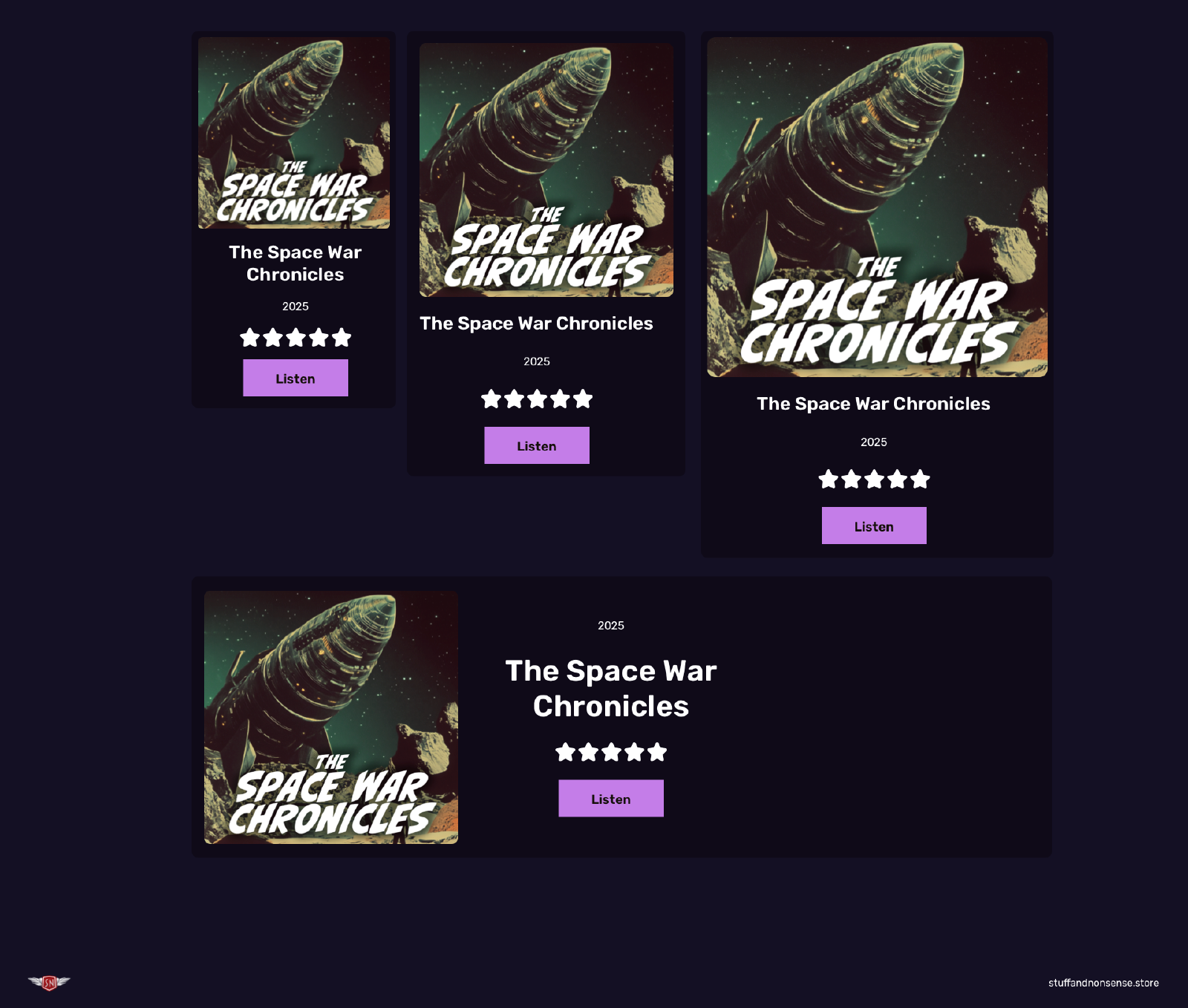
Product cards using CSS Container Queries.
Hint: You can see the effects of this container query on my demonstration page for this article.
Using CSS Container Queries in Squarespace
Container queries are a relatively recent addition to CSS, but all major browsers now support them solidly. I’ve found that the best way to integrate container queries into Squarespace websites to create new elements is by adding custom HTML into code blocks.

HTML for container queries inside a Squarespace code block.
You can either add your CSS to the code block, or—if an container query will be used multiple times across your Squarespace website, add their styles to your Custom CSS.

CSS for container queries in Custom CSS.
Have you tried using CSS Container Queries in your Squarespace websites? What other design elements do you think they can improve? Let me know in the comments or on social media.

Andy Clarke
Often referred to as one of the pioneers of web design, Andy Clarke has been instrumental in pushing the boundaries of web design and is known for his creative and visually stunning designs. His work has inspired countless designers to explore the full potential of product and website design.
Andy’s written several industry-leading books, including ‘Transcending CSS,’ ‘Hardboiled Web Design,’ and ‘Art Direction for the Web.’ He’s also worked with businesses of all sizes and industries to achieve their goals through design.
Visit Andy’s studio, Stuff & Nonsense, and check out his limited edition Premium templates for Squarespace.