
Lo que conviene saber sobre el mundo de Squarespace.
Para diseñadores, desarrolladores y personas que crean negocios en torno a Squarespace.

Cloudflare + Squarespace = a Faster, Smarter Website
Boost your Squarespace site with Cloudflare’s caching, security, and Cloudflare Workers for custom sitemaps, A/B testing, image optimization, and secure API calls.
Esta publicación es una colaboración con BeyondSpace.studio
Squarespace provides robust tools for building and managing websites, offering everything from beautiful templates to built-in caching and backup solutions. However, for those who seek even more control, security, and optimization, integrating Cloudflare can take your Squarespace site to the next level. By connecting your domain to Cloudflare, you place a powerful layer between your visitors and Squarespace's servers, unlocking features that go beyond the platform’s default capabilities.
According to NerdyData, out of 132,720 indexed Squarespace websites, 17,340 use Cloudflare. This post explores why you might want to join them and how to get the most out of this combination.

Setting up Cloudflare with Squarespace
This guide assumes you've already set up Cloudflare as your DNS nameserver manager and connected your Squarespace domain using DNS Records. While Squarespace typically recommends using DNS-only mode (disabling the orange cloud icon) to avoid potential issues, I’m following Cloudflare’s guidance instead. This approach involves proxying all records except for the verify.squarespace.com CNAME, which should remain in DNS-only mode.
If you’re unsure whether your site is connected to Cloudflare, you can verify the connection using this tool. Simply enter your domain name and click "Find DNS Record." If Cloudflare DNS records are returned, your site is successfully protected by Cloudflare.

Benefits of using Cloudflare with Squarespace
Even with Cloudflare’s free plan, you can gain a handful of benefits. Let’s explore what it can bring to your Squarespace website:
Enhanced Caching
Cloudflare provides superior caching options, helping your site load faster by serving content directly from its CDN (Content Delivery Network). This reduces the load on Squarespace’s servers and improves the user experience. Note that images, videos, and other static assets are stored on Squarespace’s CDN, not on the same domain as your website, so there will be no cache benefit for those assets. Learn more about Cloudflare Cache settings.
Crawler Hints
Cloudflare’s Crawler Hints feature can notify search engines about changes on your site. While this includes support for the IndexNow protocol, it lacks transparency in how and when content is sent to search engines. It’s a useful feature, but for better control, consider sticking with your current indexing service. Read more about Crawler Hints.

Bot and AI Blocking
Protect your site from malicious bots and AI scraping by utilizing Cloudflare's bot management tools. This feature is crucial for maintaining site security and performance and is similar to Squarespace’s crawler blocking. Learn more about bot blocking.

Country or IP Blocking
You can block visitors from specific countries or IP ranges, providing an additional layer of security and content control. IP Access rules allow you to allowlist, block, or challenge traffic based on the visitor’s IP address, country, or Autonomous System Number (ASN). This is particularly useful for blocking or challenging suspected malicious traffic and allowing services that regularly access your site, such as APIs, crawlers, and payment providers. More on IP Access rules.

Zaraz – Server-Side Tag Management
Zaraz enhances the performance, security, and privacy of web applications by loading third-party tools in the cloud, separate from browsers. This allows you to integrate analytics tools, advertising pixels, widgets, and various other third-party tools without impacting the speed of your websites. Zaraz functions similarly to Google Tag Manager but operates on the server side.

Source: Cloudflare blog
Using Zaraz, you can control what kind of data you want to share with third parties, which can help your websites comply with EU regulations. For example, when connecting Google Analytics via Zaraz, you can choose not to share visitor IPs with Google Analytics.

Exclude visitor IP using zaraz
With the free plan, you can manage up to 1 million events per month. Explore supported tools on Zaraz.
Cloudflare Workers: A Game Changer for Squarespace
Cloudflare Workers is a powerful serverless platform that can serve as a backend for your Squarespace site, allowing you to extend its functionality without enabling Developer Mode (which is only available for Squarespace 7.0 templates). With Cloudflare Workers, you can deploy up to 30 scripts and handle up to 100,000 requests per day, all for free.
Worker Routes offer an efficient way to map specific URL patterns to a Worker when your domain is proxied through Cloudflare. For instance, a route pattern like https://*.example.com/blog/* would trigger your Worker for any HTTPS request targeting a subdomain of example.com that starts with /blog/.

Source: Cloudflare blog
One of the standout features of Cloudflare Workers is Cloudflare’s HTMLRewriter. This JavaScript API lets you parse and modify HTML content in real-time. When your Worker fetches content from the Squarespace server via Worker Routes, HTMLRewriter can dynamically adjust the page content at the CDN edge before delivering it to the user.
For example, you can seamlessly inject additional HTML elements, like a script tag, into the page content using Cloudflare Workers.
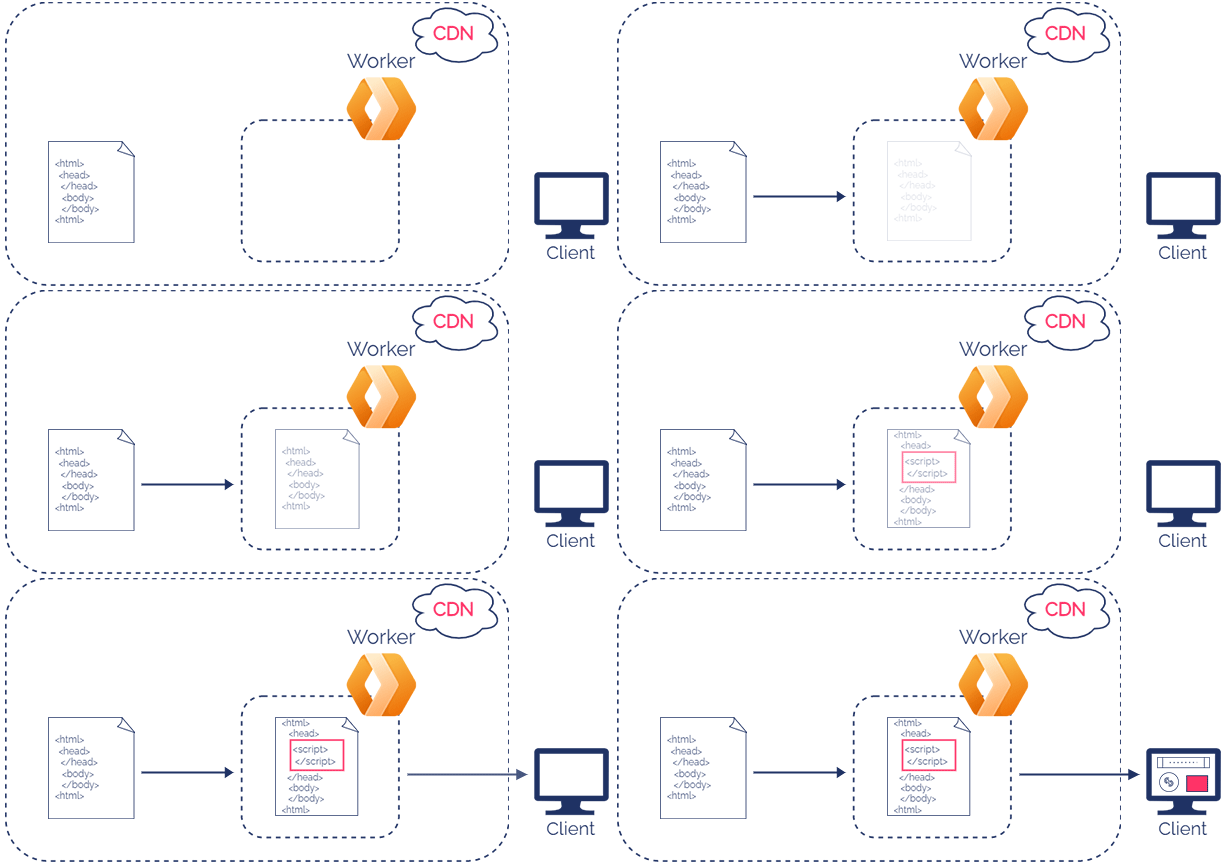
Cloudflare's HTML Rewriter. Source: able-test.com
Here are some practical uses of Cloudflare Workers:
Create an alternate Sitemap.xml
Squarespace automatically generates a sitemap, but with Cloudflare Workers, you can create custom sitemaps tailored to specific use case. For example, you might want a sitemap that only includes content from specific collection. This is particularly useful for SEO and for better organizing your site’s content.
For instance, on Beyondspace, the default sitemap is accessible at beyondspace.studio/sitemap.xml. However, a specialized sitemap for case-studies blog can be accessed at beyondspace.studio/case-study-sitemap.xml.
What makes this approach powerful is that the case-study-specific sitemap is generated on the fly and is accessible at the root level of the domain. This means as soon as new case studies are published, they are automatically included in the alternate sitemap, keeping your SEO efforts up-to-date without manual intervention. The alternate sitemap has been tested against Google Search Console and Bing webmaster tool and is accepted with no issue

Add Nofollow and Noreferrer Tags
Since Squarespace's link editor doesn’t allow adding these tags, you can use Cloudflare Workers to modify the DOM and insert the necessary attributes, enhancing SEO and privacy.
A/B Testing with Cloudflare Workers
Cloudflare Workers allows you to perform server-side A/B testing by modifying the HTML of your pages directly at the edge, enabling you to test different versions of your content seamlessly. This server-side approach gives your development team greater control and precision when determining which version of the content performs better, ultimately leading to more informed decisions and optimized user experiences.

Source: able-test.com
Secure API calls with Cloudflare Workers
Many third-party services require API keys, which can be vulnerable to misuse if exposed in client-side code. Squarespace's custom code injection places API keys directly in your website's source code, which is not recommended for security reasons. Cloudflare Workers addresses this issue by allowing you to handle API calls server-side, keeping your API keys secure.
This approach is crucial for integrating third-party services where sensitive data is involved. For example:
Tapfiliate REST API: Securely manage affiliate data without exposing your API keys. Tapfiliate REST API Documentation
Algolia Search API: Protect your search API keys to prevent unauthorized access. Algolia API Keys Security
Acuity Scheduling: Create a custom user interface for scheduling without exposing sensitive integration keys. Acuity API documentation
By using Cloudflare Workers to handle these API calls, you ensure that your sensitive data remains secure while enabling advanced integrations and functionalities on your Squarespace site.

Acuity custom UI example
Integrate image pipeline
Cloudflare Workers can efficiently handle image optimization for Squarespace sites by delivering images in WebP format and applying smart cropping. Since image optimization involves replacing all image sources when the page loads, doing this with a JavaScript solution on the frontend can be quite challenging. However, with Cloudflare Workers, you can efficiently change all image sources before they reach your visitors' browsers.
Using Cloudflare Workers, you can optimize images before they are served to users, ensuring faster load times without impacting performance. You can also use third-party image CDNs or Cloudflare's own Image Transformed service. Cloudflare Images Transformed is a post-paid service costing $0.50 per 1,000 unique transformations per month, making it a cost-effective solution for advanced image optimization.

Additional details on the Cloudflare & Squarespace connection
While there may be a slight delay when Cloudflare connects to Squarespace, this time is incredibly quick and hardly noticeable, with the entire document parsing taking roughly 5ms using Cloudflare Workers.
You can use Cloudflare Workers for free for up to 100,000 requests daily. Beyond that, it operates on a pay-as-you-go model, starting at $5 per month.
When you connect your primary domain to Cloudflare and enable proxying, you can leverage all optimization features and Workers routes for this domain, such as your-site.com. However, your built-in Squarespace domain (e.g., your-site.squarespace.com) will remain unaffected by Cloudflare.
This discrepancy can cause confusion for visitors if they land on the built-in Squarespace domain instead of the primary domain, especially if significant modifications are made to the page. To address this, a JavaScript redirection can send users to your primary domain.
Copy and paste the below script to your Code injection panel
<!-- sqs:redirect-authentic -->
<script>
(() => {
    // Define the new hostname
    const primaryHostname = Static.SQUARESPACE_CONTEXT.website.authenticUrl;

    // Get the current path and query
    const path = window.location.pathname;
    const query = window.location.search;

    // Check if the path is not /config and the current hostname is the old one
    if (location.pathname.indexOf("/config") !== 0 && location.host.includes("squarespace.com")
&& window.self === window.top) {
        // Construct the new URL
        const newUrl = `${primaryHostname}${path}${query}`;

        // Redirect to the new URL
        window.location.replace(newUrl);
    }
})();
</script>
<!-- sqs:redirect-authentic -->
For Zaraz users, the same issue applies, as the built-in domain is not Zaraz-enabled. You can install Zaraz on your built-in domain by following this tutorial.
Comparing Cloudflare integration across CMS platforms:
Shopify: Shopify uses Cloudflare by default, but its settings are limited unless you're on a Cloudflare Enterprise plan. For merchants seeking advanced customization and traffic control, the Enterprise plan is essential as part of the O2O (Orange-to-Orange) setup. According to NerdyData, 99.5% of Shopify sites use Cloudflare, with 420,930 websites on Shopify and 419,184 of them utilizing Cloudflare.
Wix: Wix currently does not support proxied DNS records for domains connected through Cloudflare. This limitation is noted in their official support documentation.
Webflow: Integrating Cloudflare with Webflow is tricky. You may need to use a Page Rule to disable SSL on specific URL patterns, as explained here. Alternatively, you might have to forego certain features like ecommerce or user accounts, as mentioned in this tutorial.
Recommended Cloudflare Proxy Settings for Squarespace
With numerous settings available on Cloudflare, it can be overwhelming to configure everything correctly. Here are the recommended settings we use for the Squarespace websites to optimize performance and security.

Cloudflare zone/website settings
Update Your Encryption Mode:
Use this to manages encryptions on two connections: one between your visitors and Cloudflare, and the other between Cloudflare and Squarespace server.
Log in to the Cloudflare dashboard, select your account and domain.
Go to SSL/TLS.
Choose an encryption mode: Full or Full (Strict) for end-to-end encryption between Cloudflare and your Squarespace server.
Caching Configuration:
Navigate to Caching > Configuration.
Activate Crawler Hints to help web crawlers index your site more effectively.
Bot Protection:
Go to Security > Bots.
Enable Bot Fight Mode to challenge requests from known bots before they access your site.
Enable Block AI Scrapers and Crawlers to prevent bots from scraping your content for AI applications.
Speed Optimization:
Go to Speed > Optimization.
For the Free Plan, enable all available settings on Recommendations.
Under Content Optimization:
Rocket Loader: Keep off unless you know what you are doing.
Auto Minify: This feature is deprecated; it’s best to leave it off.
Conclusión
Integrating Cloudflare with your Squarespace site offers numerous benefits, from enhanced caching and bot protection to advanced tag management with Zaraz. However, the standout feature is Cloudflare Workers, which unlocks a realm of possibilities that extend Squarespace's native functionality. With Workers, you can create custom sitemaps, implement server-side A/B testing, optimize images dynamically, and secure API calls—all without altering Squarespace’s core settings.
By leveraging Cloudflare Workers, you can significantly enhance your site’s performance, SEO, and security, making it a powerful tool to complement Squarespace’s capabilities.

Reduce Squarespace Image Size by 80% With WebP
Learn how to deliver WEBP image format on Squarespace, ensure your website quickly, increase engagement and boost SEO in general
Esta publicación es una colaboración con BeyondSpace.studio
Can you use WebP with Squarespace? Squarespace does not accept WebP files for upload; the officially supported types are JPG, PNG, and GIF. However, we can make it possible by leveraging 3rd party Image CDNs, let’s dive in
What is the WebP Image Format?
WebP is an image file format developed by Google, providing superior compression for web images. WebP files are smaller than JPEGs and can display transparent backgrounds like PNGs. Additionally, WebP supports animations, similar to GIFs.
Benefits of Using WebP
Enhanced Website Performance: WebP images are more lightweight compared to JPEGs and PNGs, leading to faster loading times for pages containing WebP images.
Bandwidth Savings: WebP helps save bandwidth, allowing websites to provide users with a more immersive media experience.
Improved SEO: WebP contributes to better search engine optimization (SEO) as recommended by Google's Core Web Vitals, highlighting the importance of modern image formats like WebP.
Drawbacks of WebP
Limited Compatibility: WebP is primarily focused on internet usage, making it less practical for offline image viewing. Additionally, older browsers such as Edge 12-17 and Firefox 2-64 do not support WebP, limiting its compatibility (refer to the full compatibility table for more details).
No Progressive Loading: Unlike Progressive JPEG, WebP does not support progressive loading, meaning you will choose between saving bandwidth and serving the image quickly to the client.
Let’s take a look at the example, can you spot the difference?
 View image
JPG - 291 kB - 2500 x 1667
View image
JPG - 291 kB - 2500 x 1667
 View image
JPG - 291 kB - 2500 x 1667
View image
JPG - 291 kB - 2500 x 1667
 View image
WebP - Quality: auto - 115 kB - 2500 x 1667
View image
WebP - Quality: auto - 115 kB - 2500 x 1667
This webp file is 60% smaller than its counterpart
How to deliver webp format on Squarespace?
The mechanism of this approach is to use 3rd party CDNs to cache and serve Squarespace pictures, meaning you don’t have to manually optimize and reupload image files. And manipulate Squarespace Imageloader into load the webp counterpart of the Images
First you need to understand how Squarespace images are delivered to client: first they create 7 variants of your Images and deliver them to browser based on certain conditions to ensure the best images are delivered, for example: large screen browser will likely received a 2500px wide variant, while a tablet will get a 750px wide variant. All of this is made possible with Squarespace ImageLoader
ImageLoader will expect the images on Squarespace to have either src, data-src or srcset so it can load the images effectively, based on our observation, srcset take higher priority than data-src, meaning if an image has both data-src and srcset, Squarespace will get the Image source from srcset first.
So if we can manipulate the srcset & data-src attribute of images, we can somehow force Squarespace to load any different pictures. In order to deliver webp images from Squarespace we need a on-the-fly transformation to convert and cache JPG and PNG assets and convert them to next-gen format like AVIF and WEBP, it is also required that the old browsers will still get the origin version to ensure maximum compatibility
I found the 2 services that can fulfill this requirement, include
Cloudinary
To deliver Squarespace pictures, you need to enable Fetch URL in order fetch the remote image (from Squarespace CDN)
Cloudinary's free plan gives you 25 units per month. These units can be used in three different ways:
Image transformations: You can change or optimize 25,000 images per month.
Storage: You can store up to 25 gigabytes (GB) of images or videos.
Bandwidth: Your visitors can view up to 25 GB worth of your images or videos per month.
These activities will count towards the total 25 units. To give you an idea of what 25 GB of bandwidth means in terms of website visits:
If an average page on your website has about 1 MB of images, 25 GB would allow for approximately 25,000 page views per month.
Assuming an average visitor looks at 3 pages, this translates to roughly 8,300 unique visitors per month.
Fetched assets count towards storage units, and the cache purges every 7 days.

ImageKit
It support Web server image origin, we can take advantage of this feature to serve image directly from Squarespace CDN.
The things I like about imagekit is remote images do not count toward the storage (free plan has 5Gb storage), so do the transformations, the only matter is the monthly bandwidth limit at 25GB. Video transformation is limited at 500 unit per month
Assume you have 5000 visits with everage 3 pageviews, in total of 15000 sessions, if you have 5 images on pages with average 250kb size, monthly bandwidth will be around 18GB.
Compared to Cloudinary, Imagekit has a much better analytics dashboard, allow you to view exact bandwidth and other statistics.

Ready to supercharge your Squarespace site's image performance?
Visit BeyondSpace blog for step-by-step instructions and code snippets to implement this WebP solution.
Testing
I tested the scripts using SEOSpace, which suggest images on the site should be smaller than 250KB, if you already uploaded a big file, serving them in webp can reduce the file size instantly without going through tedious process for resize and reupload.
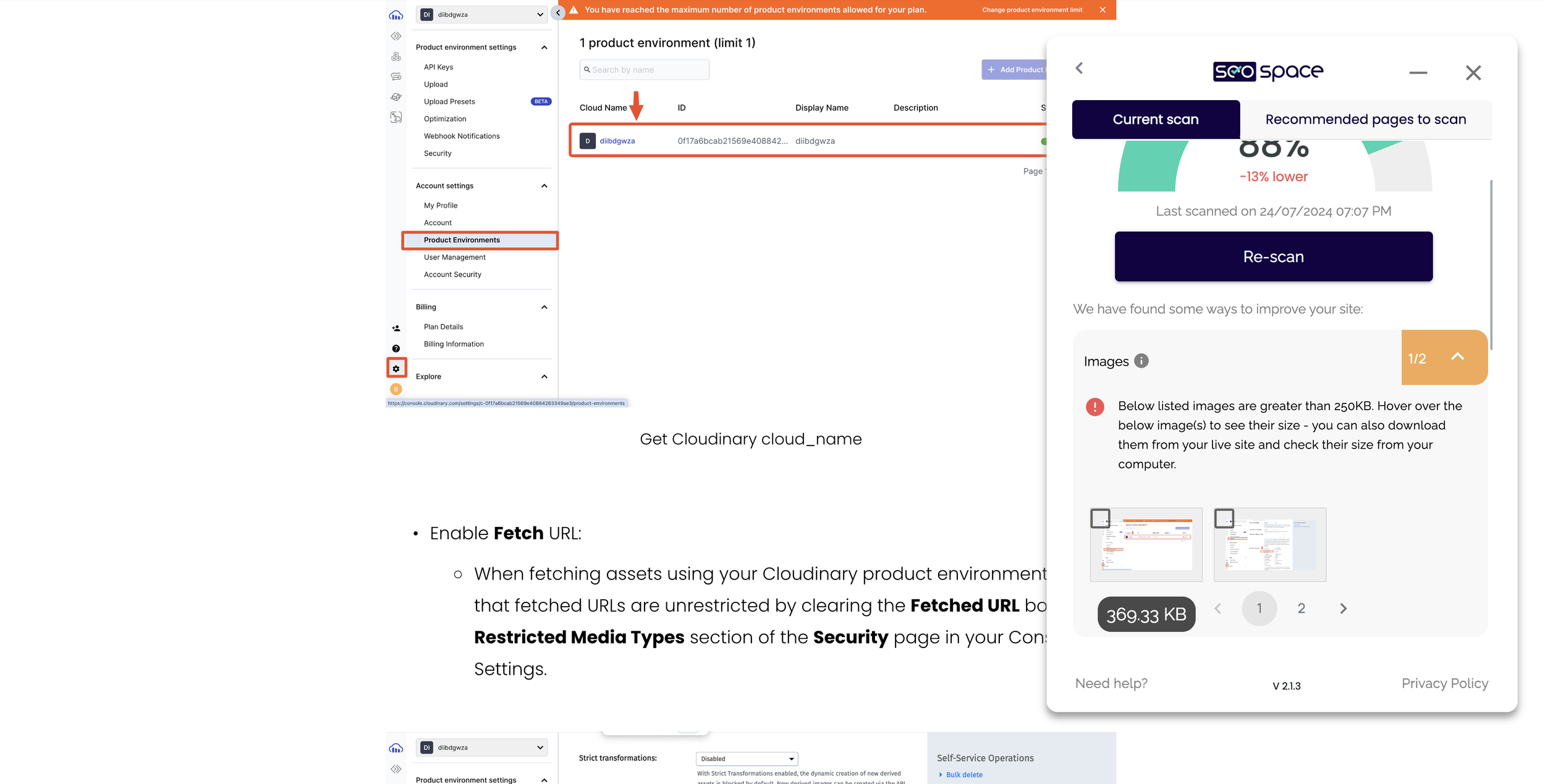

I made another test with Cloudinary webspeed test & Pagespeed
| Image Source | Page URL | Cloudinary Image Test | PageSpeed Test |
|---|---|---|---|
| Squarespace CDN (origin) | 📸 View Image | 📝 View Test | 📋 View Test |
| Cloudinary CDN | 📸 View Image | 📝 View Test | 📋 View Test |
| ImageKit CDN | 📸 View Image | 📝 View Test | 📋 View Test |
Here are the results from our image source tests using different CDNs for these specific pages in Cloudinary Image Test, other test may return different resource size:
Origin JPEG (Squarespace CDN): The total file size is 32 MB.
ImageKit CDN: The total file size is significantly reduced to 4.8 MB.
Cloudinary CDN: The total file size is reduced to 5.7 MB.
Total Number of Images: 27
Using ImageKit and Cloudinary CDNs noticeably decreases the overall file size compared to the original JPEGs served from Squarespace's CDN. This reduction can greatly improve page load times and performance.
Takeaway
The JavaScript custom code above is set to run on the DOMContentLoaded event. However, since image loading in the browser is a race, it's impractical to override all image srcset attributes on pages. As a result, sometimes images may still be served in their original format, especially above-the-fold images. Therefore, images at the top of your page, such as fullscreen banners or background images, will still need to be optimized before upload.
Aviso legal: In the next few weeks, we will publish a complete solution using Cloudflare to replace all image src attributes before the page load.
Since we set the delivery format for these services to auto, the image file type is determined by the server. In rare cases, this might result in the server serving the JPG counterpart instead of WebP. While you can explicitly request WebP conversion, it’s not recommended to ensure maximum compatibility.
You still need to monitor bandwidth usage to see if the free tier plan meets your needs.
Conclusión
By exploring these services for your Squarespace image pipeline, you gain an efficient solution for serving next-gen format images with automatic optimizations and detailed analytics.
If your primary focus is on image delivery and detailed usage insights, ImageKit is the ideal choice.
For more advanced features and video transformations, Cloudinary remains a strong alternative.
Choose the option that best aligns with your specific needs for an optimized and engaging web experience.

6 integraciones de Squarespace para promocionar tu tienda online
¿Tienes una página web de Squarespace? Es importante contar con estrategias para promocionar tu negocio. Aquí tienes algunas herramientas estupendas que pueden ayudarte:
Nos encanta Squarespace por varias razones: sus fantásticos diseños, lo fácil que es de usar… La razón n.º 401 es que cuenta con una serie de herramientas estupendas que puedes utilizar para promocionar tu negocio.
Si llevas ya un tiempo con una página web, sabrás que no basta con «crearla y que la gente venga por sí sola». Hay millones de páginas web en Internet y tienes que conseguir, de alguna manera, atraer al menos parte del tráfico de los internautas hacia la tuya.
Crear una página web atractiva y funcional es solo el primer paso. A continuación, tendrás que plantearte cómo vas a promocionarla, atrayendo a más visitantes a tu sitio web y manteniendo su interés una vez que estén allí. Aquí tienes algunos plugins e integraciones estupendos que pueden ayudarte:
(Nota: Es posible que algunos de ellos contengan enlaces de afiliados)
Consulta aquí nuestros consejos sobre por dónde empezar a promocionar una nueva página web
N.º 1. Convertkit
Si quieres atraer más tráfico específico a tu página web, el marketing por correo electrónico es una forma estupenda de conseguirlo. La idea consiste en crear una lista de suscriptores de correo electrónico que formen parte de tu mercado objetivo y estén interesados en lo que tienes que decir.
A menudo la gente se pregunta si sigue mereciendo la pena dedicarse al marketing por correo electrónico, teniendo en cuenta que se prevé que el número de correos electrónicos enviados a diario supere los 306 000 millones este año. Los datos de varios estudios sobre marketing por correo electrónico indican que sí merece la pena. Ten en cuenta estos puntos:
En el ámbito del comercio electrónico, el correo electrónico presenta unas tasas de conversión más elevadas, con una media del 4,29 %, en comparación con las visitas directas (2,93 %), los buscadores (3,04 %) y las redes sociales (1,81 %). (Smart Insights)
El 59 % de los consumidores afirma que el marketing por correo electrónico influye en su decisión de compra. (Hubspot)
Merece la pena hacer marketing por correo electrónico, pero para utilizarlo con éxito, ¡necesitas las herramientas adecuadas! No te conviene introducir manualmente las direcciones de correo electrónico ni enviar correos masivos a todo el mundo cuando el contenido solo es relevante para un segmento concreto, por ejemplo.
Convertkit es una excelente herramienta de marketing por correo electrónico que se integra con las páginas web de Squarespace. La herramienta te permite hacer cosas como:
Amplía tu lista de correo electrónico utilizando funciones como formularios de registro y páginas de destino. Normalmente hay más opciones de diseño de las que encontrarás disponibles en Squarespace.
Crea correos electrónicos elegantes y con un aspecto profesional.
Implementa la automatización del marketing. Es fundamental para llevar a cabo una campaña de marketing por correo electrónico eficaz. Por ejemplo, puedes configurar secuencias automatizadas en función de las acciones o los intereses de las personas de tu lista. Puedes segmentar a tu público según sus intereses personales para enviar el mensaje adecuado en el momento oportuno. La captura de pantalla que aparece a continuación muestra un buen ejemplo:

Consulta los informes y realiza un seguimiento de las métricas para que puedas decidir qué aspectos podrías probar o mejorar.
Puedes empezar a utilizar Convertkit con un plan gratuito, pero los planes de pago ofrecen más funciones y permiten enviar un mayor número de correos electrónicos al mes.
N.º 2. RightMessage
El poder de la segmentación es una estrategia clave para llevar a cabo un marketing eficaz. La segmentación te permite hacer llegar el mensaje adecuado a las personas adecuadas en el momento adecuado. Esto significa que tus mensajes pueden ser muy relevantes para quienes los ven, lo que siempre dará mejores resultados que un enfoque «único para todos».
En cuanto a las herramientas que se integran con Squarespace, RightMessage es una opción excelente para enviar mensajes personalizados. Funciona segmentando a los visitantes de tu página web en función de su comportamiento, de modo que vean información que les resulte relevante. En otras palabras, no todos los visitantes de la página web ven siempre lo mismo.
A los visitantes se les pueden mostrar ofertas basadas en su recorrido como clientes. Esta es una forma de garantizar que el contenido sea relevante: si han consultado determinados productos o han interactuado con otros, eso revela cuáles son sus intereses.
RightMessage te permite dirigirte a:
Ofertas con consentimiento previo
Páginas de ventas
Páginas de destino
Tu lista de correo electrónico.
Cuentan con funciones que te permiten crear encuestas o cuestionarios en tu página web para que puedas conocer mejor a las personas que la visitan. La captura de pantalla que aparece a continuación muestra un ejemplo de cómo pueden ayudarte a segmentar a los visitantes de la página web:

Puedes disfrutar de una prueba gratuita de 14 días de RightMessage y los planes empiezan a partir de 29 dólares al mes.
N.º 3. Muestra de color del producto
¿Vendes productos con diferentes variantes de color? Los clientes querrán ver exactamente cómo son esos colores antes de decidirse a comprar, pero fotografiar y subir cada variante puede llevar mucho tiempo.
Aquí es donde entra en juego el plugin «Product Color Image Swatch». En lugar de mostrar un menú desplegable de texto con las variantes de color, puedes mostrar una imagen de muestra. Puedes configurar el plugin con tus propios códigos hexadecimales para los colores y también puedes subir tus propias imágenes o patrones.
En la siguiente captura de pantalla se muestra un ejemplo:

La licencia estándar de Product Color Image Swatch cuesta 39 dólares (para un sitio web), mientras que la licencia empresarial cuesta 117 dólares (para más de un sitio web).
N.º 4. Vídeo de la galería de productos
A veces, el vídeo es realmente la mejor forma de que los clientes se hagan una idea más clara de un producto que ven en Internet. Al fin y al cabo, no es como en las tiendas físicas, donde pueden coger los artículos y examinarlos: en Internet hay que mostrarlos desde todos los ángulos para que puedan acercarse lo más posible a esa experiencia.
Los análisis de diversos estudios demuestran que los vídeos de productos fomentan las ventas. Por ejemplo, una tienda online descubrió que los vídeos de productos aumentaban en un 144 % la probabilidad de que los clientes compraran. Por supuesto, para causar impacto, se necesita un vídeo de alta calidad que muestre el producto desde diferentes ángulos.
En las páginas web de Squarespace, también necesitas un complemento fiable para configurar tu vídeo. Aquí es donde entra en juego el complemento «Product Gallery Video». Puedes configurarlo tú mismo o pedir ayuda a nuestro servicio de asistencia personalizada.
Product Gallery Video cuesta 27 dólares para una licencia estándar (un solo sitio web) u 87 dólares para una licencia empresarial (varios sitios web).
N.º 5. SEMrush
Todo profesional del marketing que tenga éxito depende del acceso a datos de buena calidad. ¿Por qué? Porque es necesario hacer un seguimiento de las métricas adecuadas para supervisar tu progreso y averiguar qué es lo que funciona.
SEMrush cuenta con un completo conjunto de funciones que ofrecen información y análisis para optimizar muchos aspectos de tu estrategia de marketing. Por ejemplo:
Flujos de trabajo de SEO
Análisis del tráfico de pago
Análisis de redes sociales
Perspectivas sobre el marketing de contenidos
Datos de estudios de mercado.
En el momento de escribir este artículo, ofrecen unas 35 herramientas diferentes, supervisan miles de millones de palabras clave y billones de enlaces y dominios. Ofrecen una prueba gratuita de siete días, tras la cual puedes elegir uno de sus planes por niveles.
N.º 6. Referral Candy
Las recomendaciones de los clientes son una forma muy eficaz de promocionar tu negocio. Sabemos que la gente busca recomendaciones de personas que conoce y en las que confía. Las recomendaciones de boca en boca representan entre el 20 % y el 50 % de todas las decisiones de compra, por lo que encontrar formas de fomentar esas recomendaciones puede suponer un importante impulso para tu negocio.
Una forma de conseguirlo es poner en marcha un programa de recomendaciones entre tus clientes. Básicamente, se trata de recompensarles por recomendar a nuevos clientes a tu negocio. Puedes gestionarlo desde tu página web de Squarespace, pero necesitas las herramientas adecuadas para hacerlo.
Referral Candy es un software de programas de recomendación de clientes que se integra con tu página web de Squarespace. El sistema te permite automatizar tu programa de recomendaciones de modo que, una vez configurado, los clientes puedan recomendar a otras personas mediante un proceso de seguimiento establecido. Ofrecen unas plantillas estupendas y acciones de promoción en diferentes canales de marketing.
Referral Candy ofrece un periodo de prueba gratuito de 30 días, tras el cual debes contratar un plan mensual.
Más complementos de afiliados y de recomendaciones
Descarga aquí nuestros consejos para promocionar una nueva página web
Reflexiones finales
Squarespace te ofrece unas herramientas fantásticas para crear una página web preciosa, pero una vez que la tengas lista, ¡tienes que promocionarla!
Las herramientas que hemos destacado aquí abarcan varias áreas diferentes del marketing, todas las cuales pueden desempeñar un papel importante para tu negocio. ¿Por dónde deberías empezar? Te sugerimos que comiences por los aspectos que puedes gestionar en tu página web, como el SEO y la creación de una lista de correo electrónico. Siempre podrás pasar a estrategias más avanzadas (que pueden suponer una mayor inversión en software) una vez que tengas un flujo constante de clientes.
Independientemente de por dónde decidas empezar, es importante contar con una estrategia de marketing sólida. Así es como podrás destacar entre los millones de sitios web que hay.