
Lo que conviene saber sobre el mundo de Squarespace.
Para diseñadores, desarrolladores y personas que crean negocios en torno a Squarespace.

Cómo sacar el máximo partido a tu portafolio de Squarespace
Hey web designers, what do you do about creating your Squarespace portfolio? Here are a few thoughts from us:
Hey Squarespace designers: when you build websites for others, what’s the best way to show them off?
We talk with many Squarespace designers, both freelancers and small agencies that are relatively new in their business and just want to be able to attract steady clients. Your portfolio plays a big role in doing this, so it’s important to get that right.
What sorts of things should you consider? Let’s take a look:
Download our tips for web design portfolios here
Curate your portfolio
Hey we get it, sometimes you feel that you have to show all of your past work in your portfolio, but that can actually work against you. It’s not that you’ve probably got poor examples in your portfolio, but that you’re bound to have projects that you’ve done just to have the work. In other words, those projects weren’t the ideal jobs you want to be doing.
We’ve talked about the idea of an “ideal customer” previously; those clients who are awesome to work with and have the sorts of project needs that you really enjoy taking care of. How do you get those customers? Well, for one thing, you should curate your portfolio so that it shows them related work and gives them a good idea of what you could do for them.
If you put every last project in your portfolio, you run the risk of your ideal customers skipping on by. Not because your work sucks, but because they totally miss the projects that are relevant to them. You dilute your messaging so people become unsure as to whether you’ll be a good fit for them.
Honestly, potential clients don’t spend a lot of time trawling through multiple examples in your portfolio. They’re more likely to scan over a few that catch their eye, so make the top few items count. If you feel you don’t have enough examples of the work you really want to be doing, you could create a mockup or two to use in your portfolio.
Before you post any new project to your portfolio ask yourself; does this show off the work I want to do for ideal customers? “Dress for the job you want!”
Take screenshots
Hoo boy, this we know for sure: if you don’t take screenshots the minute you’ve finished a website, you will, at some point, live to regret it. You don’t need to learn this lesson from experience because seriously, many designers have gone before you and can attest to this!
You pour hours and hours of time into crafting a well-designed website, fixating on each detail and making very intentional choices for graphics, fonts, headlines and images. You make sure you’re following best practices with conversions and usability.
Then you hand it over to the client.
Within a day or two, they’ve “made some tweaks” and added content that doesn’t look great or impacts the usability of the website. When you remember to go back and grab a screenshot, it just doesn’t look like the polished website you handed off.
If you’re in early days building your portfolio and that happens to be an “ideal client” website, you’ll be pretty disappointed to miss taking a screenshot. The website probably won’t be the same again (unless you get your hands on it).
Bottom line - take the screenshot as soon as you’re finished, before you hand the website off!

Source: Squarespace
Choose a portfolio style template
We’ve written about some of our favorite Squarespace portfolio templates here. You can also browse the Squarespace directory for portfolio-style templates to start from scratch.
Use a good portfolio setup
You have a few options with Squarespace when it comes to creating your own web design portfolio. If you’re running 7.1, then portfolio pages are a new feature specifically for that version.
Squarespace describes portfolio pages as “stylized landing pages that link visitors to sub-pages.” It’s as simple as adding a portfolio page from the home menu and selecting your preferred layout. The different layouts available are shown below:
From there, you can style the portfolio section. The basic options include features like spacing, image aspect ratio, hover effects, background and colors. Next, you add sub-pages which is where the content of your portfolio will sit. You can add up to 40 sub-pages (but for a website designer, that’s usually too many!). You can’t move sub-pages to another portfolio page at this stage, so give it careful thought as to how you want it laid out before getting stuck in. One suggestion would be to use one sub-page per project and have a few screenshots on each page.
If you serve more than one industry, you might want to consider multiple portfolio pages. For example, if you serve real estate agents and architects, you might have one page as a “real estate website portfolio” and another as an “architect website portfolio.”
What if you’re running Squarespace 7.0? You don’t have the option to add portfolio pages to every site, but there are multiple templates that have been created with portfolios in mind. For example, the Avenue template features an adapted, grid-based Index Page that allows you to organize your content into thumbnails and titles which click through to individual gallery pages and descriptions.

Another popular option is to use the blog page as a portfolio, either by using a “portfolio” category that can be sorted with a dropdown menu, or by having a separate blog page that is just for your portfolio. This blogpost from Big Cat Creative gives some great ideas, all supported within 7.0 or 7.1 (if you were to choose not to use portfolio pages).
Squarespace designer portfolio examples
It often helps to see what other web designers have done with their portfolios. Here are a few different examples of Squarespace designers:
Kerstin Martin
Kerstin focuses more on her online courses these days, but it’s still important that she keeps up a portfolio of her work. People can clearly see that she knows what she’s doing! (Also, check out Omari’s interview with Kerstin, recorded just prior to the COVID pandemic taking hold in the USA. How will Squarespace entrepreneurs be affected?)

Soda Creek Digital
This UK-based design agency is one of Squarespace’s “hire an expert” picks. Their portfolio is quite varied in terms of the clients they serve, but their design, consistently showing sites as they appear on different screens is pretty cool.

Flaco Zacarias
Flaco’s portfolio is an example of a scrolling gallery style, keeping his website design to one page. Anyone interested can click on the linked sites to view the full website. If you were to do something like this, again, we’d suggest just having a few examples as most people won’t view a large slide show.

Christy Price
We love the design flare shown in Christy’s portfolio, with the consistency in how she presents the featured images for each project. She also limits her portfolio to 12 examples, so it’s not too overwhelming for a potential client.

Reflexiones finales
Your portfolio is one of the most important marketing tools for drawing in new clients. Make it a thoughtful, feature piece with a handful of examples of your best work for the clients that you really want to work with.
It’s totally okay to not put every project in your portfolio, even if you actually enjoyed working with the client. They might not represent what you really want to be doing, so it doesn’t make sense to add their project as an example.
Lastly, think about how your portfolio is organized. Does it clearly state who you want to work with? Is it easy for the client to look through? Make your portfolio a showcase to be proud of.

3 ways to Connect Squarespace to ShipStation
Squarespace is a powerful platform for starting up an online business, but it doesn't necessarily handle everything. One of the biggest gaps in coverage for businesses is shipping and fulfillment. As a business owner, you have the option to go with any of a dozen or more different shipping and fulfillment companies, but you have to pick one to run your business through.
One of the best is ShipStation. They're trusted by over 100,000 businesses and with good reason. So, let's take a look at what they offer, and how you can use them with Squarespace.
What Does ShipStation Do?

As I mentioned in the intro, ShipStation is a shipping and order fulfillment company. Their tool offers a wide variety of features to help order fulfillment, well, happen. When a customer orders something from your store, what happens?
Without ShipStation, the order information is delivered to you, and you have to handle it. You have to keep track of the order, you have to pull products, you have to create a shipping label and print it off, you have to package the order and mail it. It's all manual, it all involves a lot of paperwork or working with different spreadsheets and digital systems, and it's generally all a mess.
With ShipStation, all of that is handled for you. When a customer makes an order, that order is referred to your supplier, through one of their 70+ channel integrations. They handle everything that needs to be done between getting an order and shipping a product, with robust controls and reporting available to you. They do:
Order management. You can even set up automated rules to help you with applying actions to certain kinds of orders, based on criteria, performance, and even channel.

Shipping. They gather all of the information necessary to create shipping labels in the fastest and cheapest way, saving you time and money. They can also handle batch processing and printing.

Branding. The ShipStation shipping process can also be branded in various ways, from creating branded shipping labels to offering a custom returns portal to offering a tracking page for items.

Inventory. Anyone who has had to handle inventory manually knows how much of a pain it can be. It's even worse if you're dealing with disparate suppliers or multiple warehouses. ShipStation allows you to manage inventory alerts, view stock levels, and allocate stock easily.

They also have some unique features to go with their Squarespace integration. ShipStation uses Squarespace features including order syncing, customer shipping preference selection, tracking number updates, and Squarespace-based reports.
All of this is highly valuable, of course, so it's no wonder that so many businesses turn to ShipStation for their fulfillment needs. The question is if you're setting up a store on Squarespace, or you're converting from a manual system to ShipStation, how can you integrate the two?
Use Native Integration
The first and easiest option is to simply use native linking between ShipStation and Squarespace. ShipStation is well aware that a large portion of their userbase is on Squarespace, so they have native integration. It's also quite easy to set up. Here are the instructions.
1. Log into your Squarespace account.

2. Log into your ShipStation account. If you don't already have one, you'll need to register one.

3. In Squarespace, click on Commerce, then on Shipping.

4. Scroll down to the section labeled "Connect ShipStation" and click the Connect button.

5. Click Next, since you're already logged into ShipStation. Click Next again.

6. You will be given two pieces of information; your Squarespace Domain and a generated password. Save these.

7. In ShipStation, click on the Settings gear icon.

8. Click Selling Channels, then click Connect a Store or Marketplace.

9. Choose Squarespace from the list.

10. Paste in the Squarespace domain and password from earlier in the process, and click Test Connection.

11. In Squarespace, click Connect to ensure the ShipStation connection goes through.

12. In ShipStation, click Finish to finish adding your Squarespace store to your dashboard.
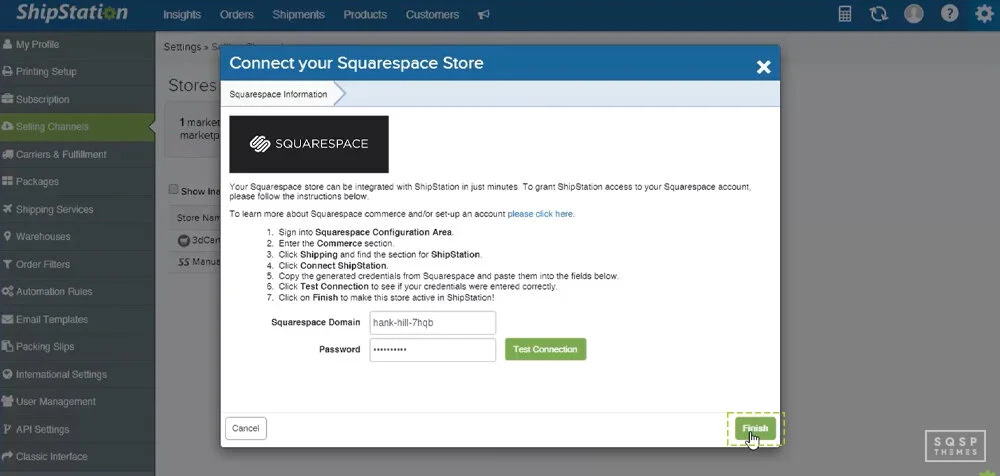
Once you've done all of this, you're ready to go. You can set up whatever rules, fulfillment options, and labels you need to configure. This is all part of using ShipStation; customizing shipping labels, choosing preferential communications channels, and so forth.
You can read more about this process, including watching a video of the connection process, on this page.
Use an eCommerce Plugin
If ShipStation has a default integration with Squarespace, why would you want to use anything else? Well, the truth is, there are several reasons.
First of all, ShipStation might not do everything you want it to do. While they do have a robust set of automation rules and customization options, they are still somewhat limited. Squarespace also only sends so much data to ShipStation via their API, so there's not necessarily an option to use some of your Squarespace information in order fulfillment.
For most small stores, this is fine. You don't need the world's most robust shipping and fulfillment platform when you're selling from one supplier, through one website.
Where things fall apart is if you have multiple sites. Many merchants set up accounts with multiple suppliers, and when you're managing multiple suppliers, you might need a more robust system to handle them. Additionally, some people set up multiple commerce sites in different niches, all selling through the same platforms. ShipStation will require you to configure each of these individually, and it can be a hassle to do all of this through Squarespace.
Using a "middleman" plugin can help a lot with this. For example, you have an option like CartRover.

CartRover is a platform that streamlines the order process. They sit in the middle of the network, aggregating all data feeds and distributing data to different channels as necessary.
So, on one side, you have Squarespace, with one or many different Squarespace sites. You can also use CartRover with various other platforms, such as Shopify. If you're running multiple different stores, they can all feed data into CartRover.
On the other side, you have the fulfillment system. ShipStation is the focus of today's post, but there are dozens if not hundreds of other fulfillment platforms out there, all of which perform similar sets of features. Finding the one you like the most (or using more than others) is part of the challenge of running a business successfully.
The key benefit to this system is that, if you choose to change aspects of your business on one side or another, you don't have to worry about a service interruption. If you change away from ShipStation, CartRover will still be receiving your data and can still forward it on as long as you have orders coming in. You can add integration for your new shipping system and seamlessly transfer over, without interruptions.
The same goes for the site side. Want to change away from Squarespace? I don't know why you would, but if you do, you can, and you will just need to forward data to avoid interruptions. You can read more about this integration here.
Use an Automation Engine
In my mind, if you're going to use a middleman, you might as well go with something more robust. CartRover is great if all you want to do is manage the transferring of eCommerce data from Squarespace to ShipStation, with a little extra thrown in for management and flexibility.
However, CartRover only does so much. They're an automation engine, but not a true automation engine. They're narrowly focused.
True automation engines are just API linkups that allow you to do whatever you want. You can send data through ten different systems automatically with the right configuration of flows. Want to send data to an archive? Want to automatically generate custom reports? Want to handle data in a unique way? Want to inject custom code with API access? You can't do that with Cart Rover or with default integrations.

If you want a more customized solution, you want a real automation engine. Luckily, there are several you can try. Zapier, Automate.io, and IFTTT are all popular options. There are, however, quite a few more out there. Microsoft owns one, for example, as does Adobe. If you have ties to one or another ecosystem already, using their system might be a good idea.
The biggest downside to using an automation engine is that you need to customize everything yourself. A platform like CartRover has all of the business processes you need already configured. With something like Zapier, you need to configure it all yourself.
While this gives you more flexibility, it also means you have to make sure you're covering all the bases. If a user purchases an order of multiple products, will it be bundled properly? If they apply a shipping discount, will the data be forwarded correctly? You need to think through the process carefully.
You're also susceptible to API limitations and limitations on the platform itself. This can be an added expense you don't want to pay, on top of what you're already paying for Squarespace and ShipStation.
Alternatives to ShipStation
ShipStation is a pretty great shipping and fulfillment platform, but it's not the only one. As I've mentioned, there are quite a few others out there.
If the reason you want to use something like CartRover or Zapier is that you want a feature that ShipStation doesn't offer by default, another thing to consider is that maybe a ShipStation alternative does. So, what are some of those alternatives?
Spocket. This is a fulfillment app specifically made for dropshipping. It works with both US and EU suppliers, making it an ideal platform for that particular kind of eCommerce. It helps you get wholesale prices, which is a core business model for many.

ShipBob. This shipping and fulfillment platform is often cited as one of the biggest competitors to ShipStation. It too has Squarespace integration by default. More importantly, it allows you to leverage their network of global warehouses, so there's virtually always going to be two-day shipping no matter where in the world your customers happen to live. It's very convenient and surprisingly cheap for what it is.

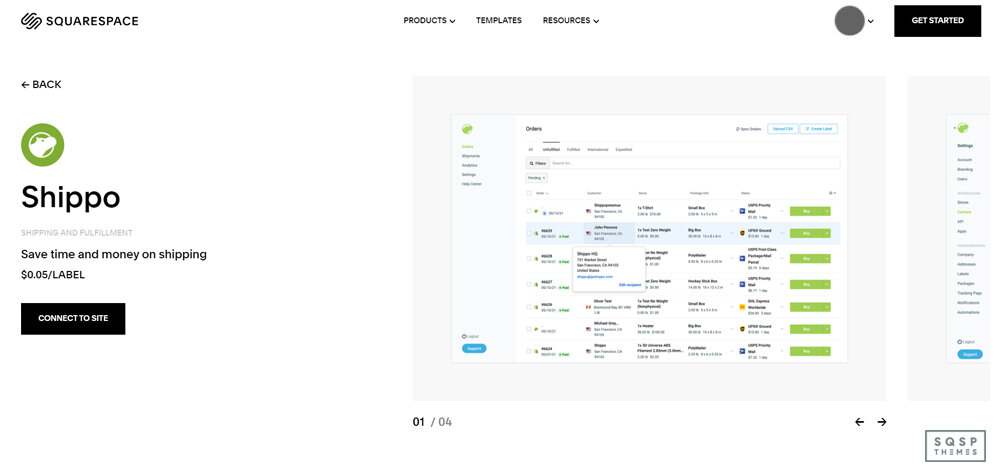
Shippo. What about cases where you want to handle all of the shipping and fulfillment yourself, but you don't like the way Squarespace runs things? Shippo is a simple app that handles generating and printing shipping labels, very cheaply. They can get you discounted shipping rates for all of the major carriers, automatically. The downside is, well, that's all they do.
Order Desk. This is an order management app similar to ShipStation, intending to add more automation to the entire process. They have a rule builder to help you sculpt out a completely automated workflow. They have over 300 integrations with other systems as well, so if you want to add in another data feed the way you might with Zapier, you can do it from one centralized platform. It can work quite well.

Easyship. This is very similar to both Order Desk and ShipStation. It does shipping labels including discounted shipping, it syncs orders and handles returns, and it has worldwide tracking integrated into it.

These are just the shipping and fulfillment apps available to you with Squarespace by default. If you're willing to link a third-party app instead, you have even more options on the table. Pretty much no matter what you want to do with your shipping, you can, if you can find the right app.
Which Option is Best?

So which of these choices is best for you? Well, that depends entirely on your business needs. If you're trying to get a simple system up and running, using the default integration with ShipStation is more than enough. If you want something with more robust features or deeper integration, using a middleman is great. If you want a completely custom setup, Zapier or Automate.io can help. It all depends on what you need and how your business grows over time.
Have you used ShipStation with a Squarespace site before? If so, how did it work out for you? Let me know in the comments below.

Cómo configurar campañas de boletines informativos por correo electrónico en sitios web de Squarespace

Los boletines informativos se encuentran entre las mejores herramientas de marketing que puedes aprovechar como propietario de una página web, pequeña empresa o bloguero. ¿Por qué?
Bueno, tres razones.
Son totalmente independientes de otras plataformas. No tienes que preocuparte de que el algoritmo de Google deje de indexar tu sitio web, de que el algoritmo de Facebook solo te muestre al 7 % de tu público, ni de que ningún otro sistema de terceros se interponga. Incluso si tu gestor de correo te da de baja, no pierdes tu lista y puedes importarla a otro sistema.
Puedes estar seguro de que tu público estará interesado en ti. Nadie se suscribe a tu lista de correo si no tiene al menos un mínimo de interés en tu empresa, marca, producto o servicio. Por lo tanto, tu lista de correo está formada por personas que se han seleccionado a sí mismas, lo que la convierte en uno de los públicos más receptivos y mejor segmentados que puedes conseguir.
Mantienen el interés de tu público. Aunque tus usuarios no abran tus correos electrónicos (algo que puedes intentar solucionar), el mero hecho de recibir tus mensajes les recuerda que existes y hace que sigan pensando en ti y en el motivo por el que se suscribieron en un principio.
El problema es que hay que trabajar mucho para poner en marcha un boletín informativo. Tienes que mejorar tu página web con formularios de suscripción, ofrecer ofertas atractivas, hacer que tu boletín resulte interesante y gestionarlo adecuadamente para cumplir tus promesas.
No me malinterpretes, gran parte del trabajo que supone poner en marcha un boletín informativo solo hay que hacerlo una vez. Se trata de un coste inicial elevado, al que le sigue mucho trabajo de mantenimiento y optimización. Una vez que tengas tus formularios de suscripción en marcha, solo necesitarás unos pequeños ajustes para que sigan siendo relevantes; no tienes que volver a pasar por todo el proceso de nuevo.
Entonces, si tienes una web de Squarespace y quieres poner en marcha un boletín informativo, ¿cómo puedes hacerlo?
Vamos a ello.
Gestión de un boletín informativo
En primer lugar, debes decidir qué sistema quieres utilizar para gestionar tu lista de correo y tu boletín informativo. Se trata de elegir una plataforma, de forma similar a como elegiste Squarespace para crear tu página web. La plataforma de boletines informativos que elijas determina varios factores esenciales. Por ejemplo, la frecuencia o el número de correos electrónicos que puedes enviar al mes, el tamaño máximo de tu lista de correo y el coste de su gestión. O, por poner otro ejemplo, a qué herramientas tienes acceso a la hora de diseñar los propios boletines informativos.

Hay muchas opciones diferentes, así que solo voy a enumerar algunas y dejaré que las explores por tu cuenta. Siempre puedes cambiarlas más adelante; tu lista de correo es de tu propiedad y puedes exportarla o importarla en cualquier momento desde cualquier sistema.
Opción 1: Squarespace.
Para empezar, ¿sabías que Squarespace cuenta con un gestor de correo electrónico integrado? Puedes utilizar bloques de contenido específicos en tu página web para recopilar direcciones de correo electrónico y gestionar tu lista de suscriptores y tu boletín informativo directamente a través de Squarespace.

Esta estrategia tiene varias ventajas. En primer lugar, al tratarse de Squarespace, todo se gestiona desde el mismo lugar en el que gestionas tu página web. No se necesitan inicios de sesión ni conexiones de terceros. Además, las herramientas para crear boletines informativos funcionan de manera muy similar a las que utilizas para crear tu página web, por lo que te resultarás familiar al instante.
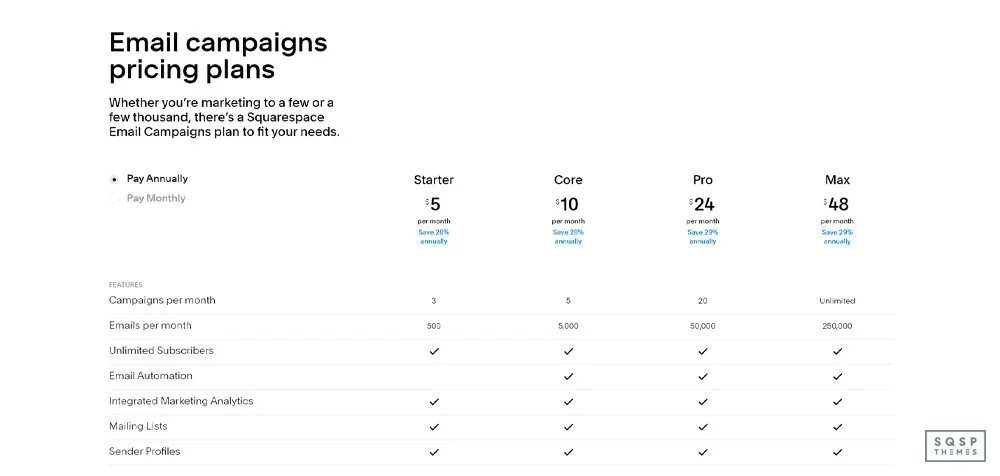
Por otro lado, los boletines informativos son una función premium a la que solo se puede acceder si se contrata unasuscripción adicionalpara campañas de correo electrónico. Todos los sitios web de pago de Squarespace tienen acceso a una prueba limitada del servicio de marketing por correo electrónico, pero si quieres utilizarlo de forma seria, tendrás que pagar esa cuota adicional.
A continuación te explicamos cómo empezar.
Opción 2: Mailchimp.
En el apartado anterior, mencioné que Squarespace cuenta con bloques de boletines informativos. Se trata de bloques de contenido que incluyen formularios de suscripción a tu lista de correo. Son fundamentales para crear tu lista de correo. Además, pueden conectarse a otros sistemas además de Squarespace Email. Tienes tres opciones: Squarespace Email, Mailchimp y Zapier. También puedes optar por enviar los datos de correo electrónico a Google Drive para utilizarlos en otros sistemas.
Por ahora, hablemos deMailchimp. Mailchimp es uno de los gestores de campañas de correo electrónico para principiantes más recomendados, y con razón. Ofrece una gran variedad de funciones y contenidos avanzados para cualquiera que quiera gestionar campañas de correo electrónico. Es muy flexible y cuenta con un montón de opciones. ¡Incluso tiene un plan gratuito que puedes utilizar para probar su sistema!
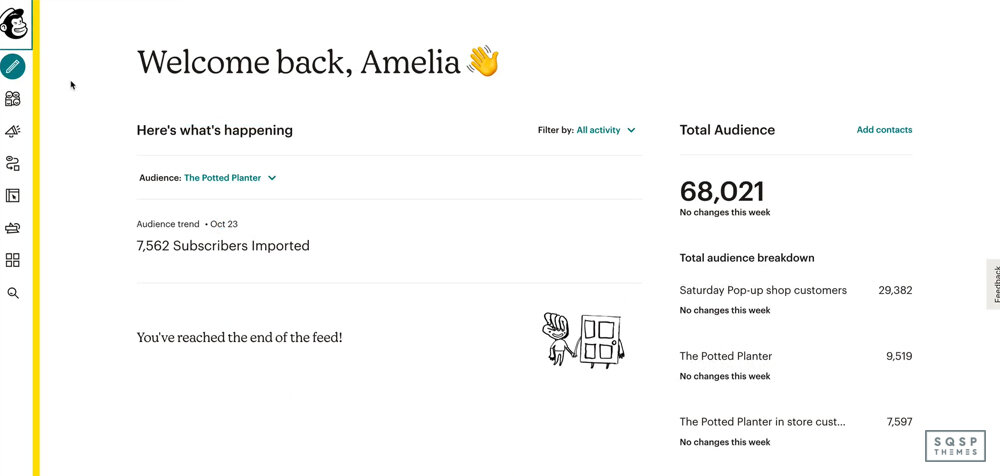
Dado que los bloques de Squarespace se pueden vincular directamente a Mailchimp, me gusta recomendarlos como la mejor opción si quieres gestionar el correo electrónico por separado de tu cuenta de Squarespace. De todos modos, es la opción más fácil de configurar.
Opción 3: Sistemas Zapier.
Zapier es un motor de automatización.
Se trata de un sistema que conecta API que no se comunican directamente entre sí, actuando como intermediario. Mediante los bloques de boletines informativos, puedes enviar datos a Zapier y, a través de este, a otros sistemas de correo electrónico que Squarespace no admite de forma nativa.

A través de Zapier, puedes enviar las suscripciones a tu lista de correo a otros sistemas de gestión de correo electrónico, como ActiveCampaign, HubSpot, Constant Contact y ConvertKit. Hay más de 100 sistemas diferentes que puedes conectar con Zapier, así que tendrás queexplorarlos por ti mismosi quieres saberlo con certeza.
Opción 4: Otros sistemas.
Supongamos que no te gusta Zapier y que no quieres utilizar Squarespace ni Mailchimp para gestionar tus correos electrónicos. En ese caso, puedes exportar los datos directamente a Google Drive e importarlos manualmente a cualquier otro sistema. Es menos automático y más complicado, pero bueno, hay quien lo prefiere así.

¿Qué opción deberías elegir?
Sinceramente, yo te recomiendo que empieces con Squarespace. Siempre puedes cambiarlo más adelante, y Squarespace es la opción que menos complicaciones da a la hora de configurarlo todo.
¿Qué es la doble confirmación?
Hay algo que debo mencionar antes de seguir adelante: el concepto de «doble confirmación».
Que tu boletín informativo sea marcado como spam y filtrado automáticamente por sistemas de correo electrónico como Outlook y Gmail es una de las peores cosas que le pueden pasar a un profesional del marketing. Hay muchas medidas que puedes tomar para evitar que eso ocurra, pero el «double opt-in» es una de las más importantes. Como puedes imaginar, existen tanto el «single opt-in» como el «double opt-in», así que, ¿en qué se diferencian?

El «opt-in» simple significa que tienes un formulario en tu página web en el que los usuarios pueden introducir su dirección de correo electrónico.
Cuando lo hacen, se suscriben automáticamente a tu boletín informativo. Es rápido, fácil y sin complicaciones, y te permite enviar contenido a tus seguidores de forma inmediata. Sin embargo, tampoco hay ningún proceso de verificación, lo que significa que puedes acabar llenando tu lista de contactos con clientes potenciales de baja calidad, spam y usuarios que no han utilizado su correo electrónico para registrarse.
El proceso de doble confirmación, como habrás adivinado, comienza de la misma manera. El usuario introduce su dirección de correo electrónico para registrarse. Sin embargo, antes de poder enviarle mensajes, es necesario obtener su confirmación. Tu sistema envía un correo electrónico de confirmación, y el usuario inicia sesión y hace clic en él, con lo que se le añade a la lista. Esto filtra los contactos de baja calidad, el spam y los errores tipográficos. No obstante, hay que lidiar con problemas como que los usuarios no confirmen su dirección o que el correo electrónico de confirmación sea filtrado como spam.
En general, los estudios demuestran que el «double opt-in» es mejor para el marketing, así que eso es lo que siempre recomiendo.
Configuración de formularios de suscripción
De nada te sirve tener un sistema de boletines de noticias si no recabas direcciones de correo electrónico. Ya sea mediante una ventana emergente deslizante, una ventana emergente tipo «lightbox» o simplemente un bloque de boletín integrado en tu contenido, necesitas disponer de algún método para que los usuarios te faciliten su dirección de correo electrónico. Eso significa que debes utilizar formularios en tu página web.

Squarespace ofreceaquí una documentación completa sobrecómo utilizar sus bloques de boletines informativos. Esta será la base de tus campañas de suscripción en Squarespace. Puedes utilizar otros formularios, pero ninguno funciona tan bien como estos.
También puedes hacer que tus formularios de suscripción sean más atractivos visualmente mostrándolos de formas originales. Por ejemplo, si utilizas unplugin de lightbox, puedes mostrar tu formulario de suscripción en una ventana emergente de lightbox. También puedes utilizar formularios de suscripción de terceros mediante un bloque de código. Te recomiendo que añadas tantos recuadros de llamada a la acción como te sea posible, que pruebes qué posiciones funcionan mejor y que, a continuación, elimines aquellos que no llamen la atención.
Cómo fomentar que más personas se suscriban
Una vez que tengas el back-end configurado y probado, tienes que conseguir que la gente se registre. Entonces, ¿cómo puedes fomentar que se registren más usuarios?

Haymuchas opciones.
Coloca tu llamada a la acción en lugares innovadores. En Squarespace, cualquier lugar en el que puedas insertar un bloque de código personalizado o un bloque de boletín informativo es un lugar en el que puedes colocar una llamada a la acción. En medio del contenido, en una barra lateral, en tu barra de anuncios, en una página de destino; todas estas son excelentes opciones.
No pidas demasiada información. Algunos formularios personalizados te permiten solicitar un montón de datos, como el nombre, la ubicación, el nombre de la empresa, etc., solo para registrarse. Cuantos más campos tenga que rellenar un usuario, menos probable será que se registre.
Recopila opiniones sobre tu boletín informativo. A veces basta con una o dos opiniones de figuras destacadas y reconocidas como autoridades en tu sector para convencer a la gente de que tu boletín informativo merece la pena.
Ofrece algo gratis. Un cupón, una prueba gratuita, un libro electrónico… Tienes muchas opciones de artículos gratuitos que puedes regalar a quienes se registren. Solo ten en cuenta que esto puede hacer que la gente se registre para recibir el producto, pero que luego nunca llegue a abrir tus boletines informativos.
Anuncia tu boletín informativo en otros sitios. Facebook, Twitter, tu firma de correo electrónico, tus tarjetas de visita... Cuantos más sitios haya donde puedas mostrar un enlace a una página de destino diseñada para captar suscriptores, mejor.
Inscríbete a los usuarios que realicen una compra. Tanto si creas una cuenta de usuario como si solo solicitas una dirección de correo electrónico de contacto, cualquier persona lo suficientemente interesada como para realizar una compra lo está también para formar parte de tu lista de correo.
Puedes utilizar cualquiera de estas técnicas de forma combinada. Cuando tu objetivo principal es conseguir más registros, da igual que te dirijas al usuario desde todos los ángulos; algo tiene que funcionar.
Con qué frecuencia enviar boletines informativos
Una vez que tengas una lista de correo, debes decidir dos cosas. En primer lugar, ¿vas a enviar correos masivos o campañas automatizadas? En segundo lugar, ¿con qué frecuencia vas a enviarlos?
Entonces, ¿cuál es la diferencia entre un envío masivo y una campaña? Pues bien, un envío masivo se envía a todos los destinatarios de tu lista de correo al mismo tiempo.

Una campaña automatizada es como unacampaña de goteoque comienza cuando el usuario se registra y envía mensajes a intervalos personalizados para cada uno.
¿Mi recomendación?
Utiliza ambas cosas. Cuando un usuario se registre por primera vez, inicia una campaña de envío gradual durante unas semanas o unos meses. Cuando finalice la campaña de envío gradual, pasa a enviarle tus boletines periódicos.
¿Con qué frecuencia deberías enviar boletines? Eso depende de ti. Algunas empresas los envían a diario, otras semanalmente; algunas incluso mensualmente o trimestralmente. No hay una respuesta correcta; depende de la cantidad de contenido que compartas y del valor que quieras aportar. Quizá descubras que los correos más frecuentes acaban abriéndose con más asiduidad porque la gente está constantemente al tanto de ti y de tu contenido. Quizá descubras que los mensajes menos frecuentes funcionan mejor porque garantizan un mayor valor por mensaje. Tienes que probarlo para estar seguro.
Información práctica sobre el boletín informativo
Una lista de correo no es algo que se configure una vez y ya está. Hay que mantenerla, lo que significa tomar medidas para garantizar que solo se envíen mensajes a las personas que realmente los desean.
La herramienta más importante con la que cuentas es la posibilidad de saber cuándo los usuarios abren tus correos electrónicos gracias al seguimiento de mensajes. La mayoría de los sistemas de correo electrónico ofrecen esta función. Cuando observes que un usuario no abre ninguno de tus mensajes, puedes trasladarlo a una lista de seguimiento. Los usuarios de esta lista reciben un correo electrónico del tipo: «Hola, hemos observado que no estás abriendo nuestros mensajes».
Los usuarios que abran ese mensaje podrán volver a incorporarse a tu lista de correo; los que no lo hagan podrán permanecer en la lista de selección durante uno o dos intentos más antes de ser eliminados definitivamente de tu lista.

Cuanta más gente archive, borre o marque tus mensajes como spam sin abrirlos, más probable será que sistemas como Google empiecen a identificar tu dominio como un dominio de spam y a filtrar tus mensajes. Evita esta situación en la medida de lo posible.
Otro aspecto a tener en cuenta son los correos electrónicos devueltos. A veces, una dirección de correo electrónico no funciona, es falsa o se ha eliminado, lo que hace que los mensajes enviados a esa dirección no se entreguen.
Elimina esos correos electrónicos de tu lista.
Depurar tu lista mejora las métricas de tu correo electrónico y te ayuda a llegar a tu público de forma más precisa.
En general, la fase de mantenimiento y crecimiento es fácil y sencilla, aunque requiere mucho tiempo y es un proceso continuo. Aun así, cuando te des cuenta de cuántas ventas adicionales consigues gracias a los usuarios de tu lista de correo, te preguntarás por qué no la creaste antes.